
This application was born after a student trainee, Pedro Vicente, spent his Summer at my company Aliatron and did a technical project with a 8051-based robot “Robo-51” from Inex . Pedro has already published here in this blog, his work that is based on remote control of a robot with bluetooth.
Objectives:
Use Processing sketch to create a virtual gamepad that controls a bluetooth-enabled robot, in this case a Robo-51 from Inex. The virtual gamepad must control the robot using serial communication capabilities of a bluetooth module (ZX-Bluetooth). Voice-enable the gamepad with TTS capabilities of Windows.
Equipment Setup:
A 8051 robot “Robo-51” (could be any other micrcontroller) with ZX-Bluetooth module, running a firmware for bluetooth control (or any other serial control), and PC with Windows and Processing software.
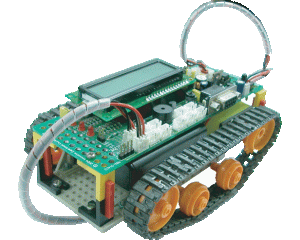
8051-based robot “Robo-51”
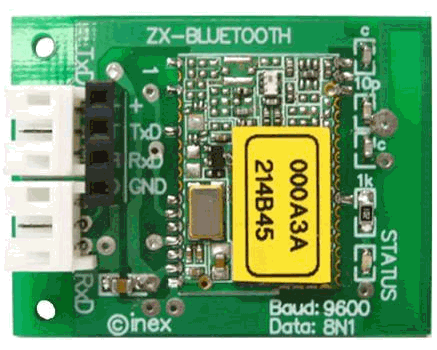
Serial bluetooth module “ZX-Bluetooth”
Bluemote – Virtual Gamepad:
The sketch in Processing named bluemote has the following code:
import processing.serial.*;     //Import serial library
import guru.ttslib.*;           //Import tts text-to-voice library
// Based on serial example of Processing 1.2.1. To be used with
// 8051 "Robo-51" from INEX, bluetooth enabled wihZX-Bluetooth
// Sketch by Tayeb tayeb.habib@gmail.com www.redacacia.wordpress.com
// This sketch uses ttslib for sound, library downloadable at
// www.local-guru.net/blog/pages/ttslib

PImage bg;      // Create object from PImage class
Serial myPort;  // Create object from Serial class
TTS tts;        // Create object from Tts class

void setup()
{
  size(318, 184);                             // Sketch of same size as gamepad image

  myPort = new Serial(this, "COM5", 9600);    // Set comm port
  bg = loadImage("bluemote.jpg");             // Load bluemote image
  tts = new TTS();                            // Create an instance of the TTS class
  tts.speak("Hi! I am Robot Fifty-One");      // Call the speak method
  tts.speak("I am at your orders! Boss!");    // Call the speak method
}
void draw() {
  background(bg);                 // Load bluemote gamepad image as background

  if ((mouseOverForw() == true) && mousePressed) {  // If mouse is pressed and over forward button,
    cursor(HAND);                 // Hand cursor
    myPort.write("d");            // Send letter d for forward movement of robot
    tts.speak("Forward");         // Call the speak method
  }

  else if ((mouseOverBack() == true) && mousePressed) {  // If mouse is pressed and over backward button,
    cursor(HAND);                 // Hand cursor
    myPort.write("a");            // Send letter c to turn the robot leftwards
    tts.speak("Backward");        // Call the speak method
  }

  else if ((mouseOverLeft() == true) && mousePressed){  // If mouse is pressed and over left button,
    cursor(HAND);                 // Hand cursor
    myPort.write("c");            // Send letter c to turn the robot rightwards
    tts.speak("Left");            // Call the speak method
   }

  else if ((mouseOverRight() == true) && mousePressed) {  // If mouse is pressed and over right button,
   cursor(HAND);                 // Hand cursor
   myPort.write("b");            // Send letter b to turn the robot rightwards
   tts.speak("Right");           // Call the speak method
   }

  else if ((mouseOverStop() == true) && mousePressed){  // If mouse is pressed and over stop button,
   cursor(HAND);                 // Hand cursor
   myPort.write("s");            // Send letter s to stop the robot
   tts.speak("Stopping");        // Call the speak method
   }

  else {
  cursor(HAND);                   // Hand cursor
  }
}

  boolean mouseOverForw() { // Test if mouse is over control button
  return ((mouseX >= 240) && (mouseX <= 256) && (mouseY >= 63) && (mouseY <= 78));
}
  boolean mouseOverBack() { // Test if mouse is over control button
  return ((mouseX >= 240 ) && (mouseX <= 256) && (mouseY >= 106) && (mouseY <= 121));
}
  boolean mouseOverLeft() { // Test if mouse is over control button
  return ((mouseX >= 218) && (mouseX <= 228) && (mouseY >= 84) && (mouseY <= 98));
}
  boolean mouseOverRight() { // Test if mouse is over control button
  return ((mouseX >= 272) && (mouseX <= 287) && (mouseY >= 74) && (mouseY <= 96));
}
  boolean mouseOverStop() { // Test if mouse is over stop button
  return ((mouseX >= 47) && (mouseX <= 108) && (mouseY >= 78) && (mouseY <= 132));
}
Appropriate changes will be required according to the setup namely:
the serial port: in our case it is COM5, in your case it could be another port
the commands: in our case they are d for forward, a for backwards, c for leftwards, b for rightwards and s for stopping.
The sketch calls a TTS library (link shown within the code) and uploads a background image. The gamepad image that has been used for this sketch is:
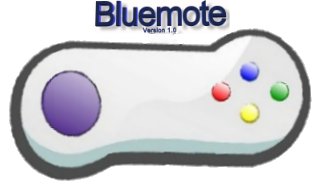
Just download it and add to your project folder ususally found within c:/my documents/processing
The 8051-robot firmware and bluetooth:
Pedro Vicente, mentioned above, has published here the whole project envolving the 8051-based robot “Robo-51” and bluetooth. In fact the virtual gamepad can function through any serial connection to any micrcontroller. The commands and the serial port have to be adapted in the sketch.
View a video of Virtual Gamepad and Robo-51:
Conclusions:
Serial communciations library, and other libraries in Processing, offer enormous potential in adding interactivity to electronic projects. Bluemote, the virtual gamepad that has been explained here is an example of how easy it is to make electronic projects to talk and interact with the environment.


 RedAcacia
Pingback: Controlling a robot with bluetooth-enabled cell phone | RedAcacia