Internet Control of a Labview VI (Part I)

Introduction

Labview from National Instruments (NI) is build upon a purely graphical, general-purpose programming language, G, with extensive libraries of functions, an integral compiler and debugging, and an application builder for stand-alone applications. The concept of VIs (Virtual Instruments), invented by National Instruments, permits the building of powerful instrumentation and control to run anywhere and everywhere.

Objectives

Making use of Labview and DAQ (Data Acquisition) device, build a VI (Virtual Intrument) with a switch that lights up a LED.  The project is next extended to control the VI from Internet.

Pre-Requirements

Installed Labview and DAQmx softwares, and a DAQ device duly working and recognised by Labview.

Required Equipment

NI Labview 8.6 Student or higher
NI DAQmx 8.6 or higher
NI USB-6009 DAQ device
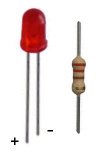
200 ohms 1/4W resistor
5mm red LED

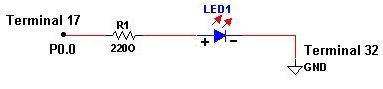
The Electronic Circuit

Circuit diagram with indications of connections to USB-6009

A Simple VI

STEP 1 – Start Labview

STEP 2 – A new window is opened Getting Started

Getting Started window

STEP 3 – Under Files menu, start a new VI pressing on Blank VI link. It will open the Front Panel of a new untitled blank VI.

Frontal Panel

STEP 4 – On the Front Panel workspace, right click with mouse and choose Controls, Buttons & Switches -> Push Button

Adding push button

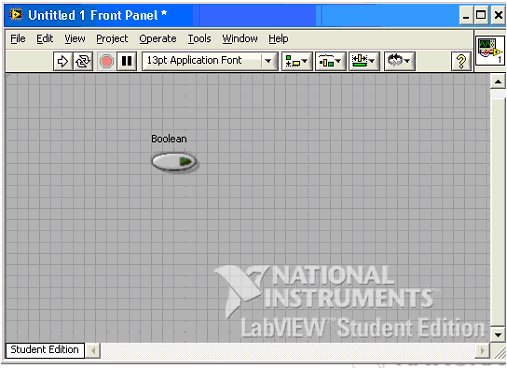
Now place the Push Button on the Front Panel workspace

Push button on Front Panel

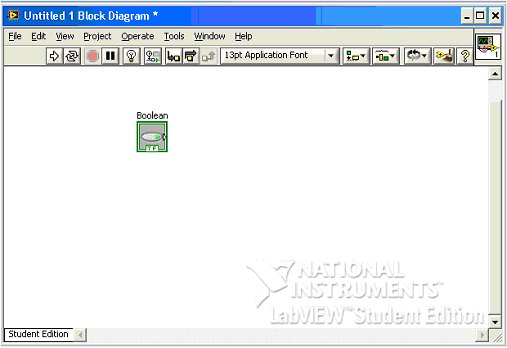
STEP 5 – On Window menu of Front Panel choose Show Block Diagram

Block Diagram window will be opened. It will already contain the Push Button function

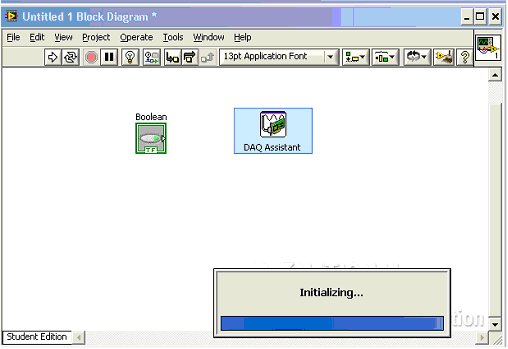
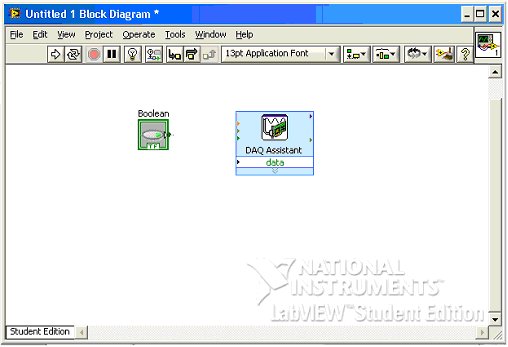
STEP 6 – Right click with mouse the Block Diagram workspace and choose Functions – > Input -> DAQ Assistant

Place adequately the DAQ Assistant function on the Block Diagram workspace. DAQ Assistant will be immediately initialized

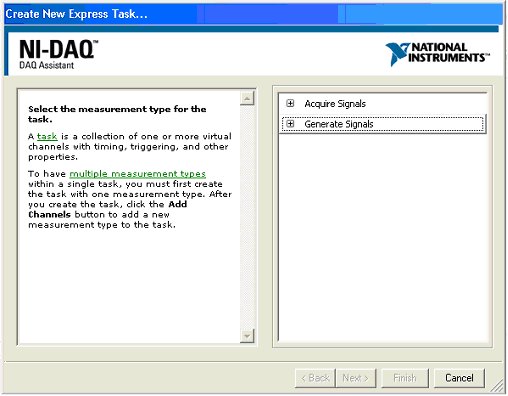
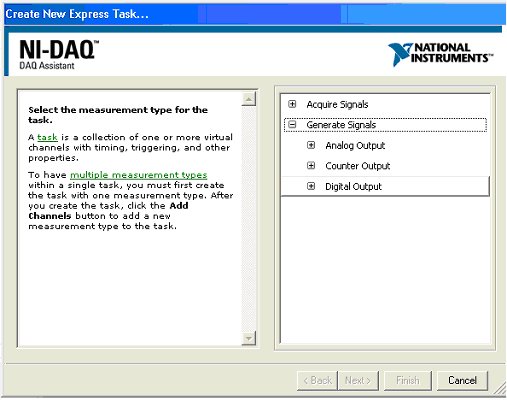
STEP 7 – Create New Express Task window will be opened. Choose Generate Signals

STEP 8A sub-menu will be opened. Choose Digital Output

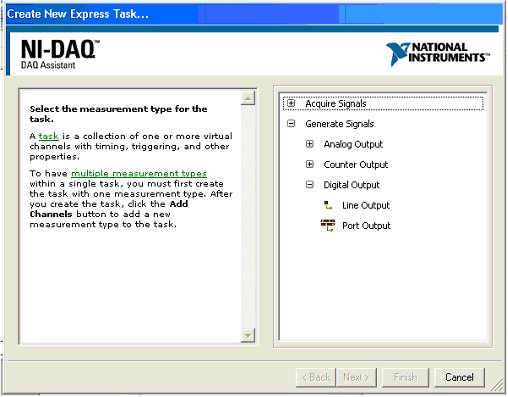
STEP 9 – Another sub-menu will be opened. Choose Line Output.

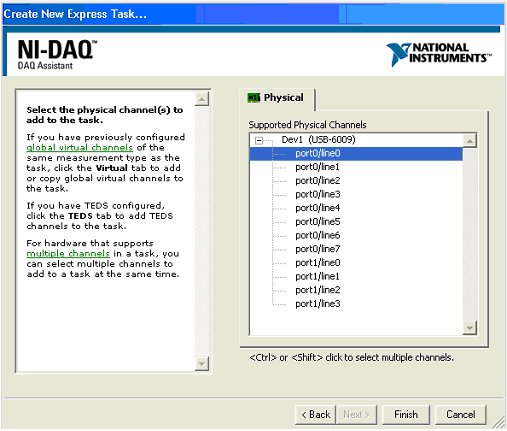
STEP 10 – A new window will opened. Under Supported Physical Channels choose port0line0

Press Finish


STEP 11 – A new window of DAQ Assistant will be opened

Leave all default values as they are, and press OK.

STEP 12 – Block Diagram will be opened, and VI will be build.

STEP 13 – Block Diagram will have now configured DAQ device.

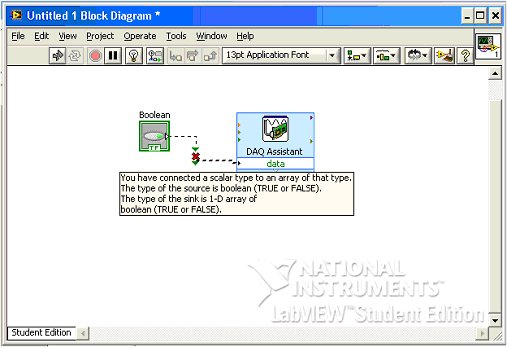
STEP 14 – Connect Boolean function with data input of DAQ Assistant

The link will be broken with an error message:

“You have connected a scalar type to an array of that type. The type of the source is Boolean (TRUE or FALSE). The type of the sink is 1-D array of Boolean (True or False)”

Hence we need to place the Boolean function in an Array.

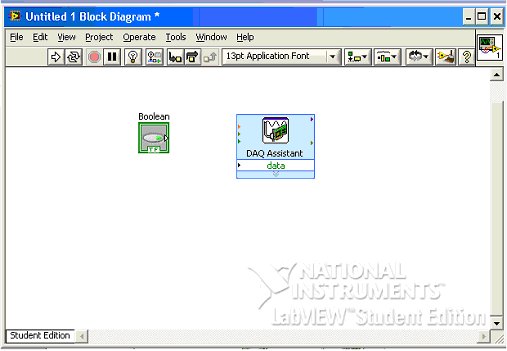
STEP 15 – Press the right button of the mouse on the link, and delete the link

The Wire Branch will be removed

Before doing anything else, it is safe to save the VI. Under File menu of the Block Diagram, choose Save as and save the VI as switchled_usb6009.vi

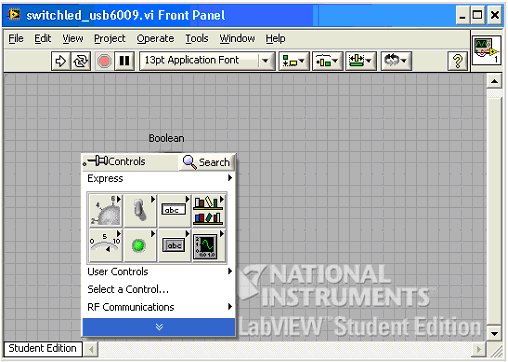
STEP 16 – Press the right button of mouse and choose extra set of Controls clicking the button on the arrow pointing downwards, just below RF Communications controls

Choose Modern -> Array, Matrix & Cluster -> Array

STEP 17 – Place it on the Front Panel workspace

After selecting the Push Button Boolean, drag it and drop into Array box. The Push Button will become part of the Array

STEP 18 – Now select the Block Diagram

Connect the new Array function (containing the Boolean Push Button) to data input of DAQ Assistant function. This time the link will show no error.

STEP 19 – It is a good practise to place the functions within a While Loop with a STOP button.  Right click with mouse button on the Block Diagram, and choose Execution Control – > While Loop

Place the While Loop around Array and DAQ Assistant functions, starting from just on top left of Array function, and ending below DAQ Assistant function allowing automatic placing of stop button that comes with While Loop.

STEP 20 – The Front Panel will contain now a STOP button. Place it appropriately and resize it

STEP 21 – Hopefully it is all OK now and we can save the VI, in Front Panel with File ->  Save

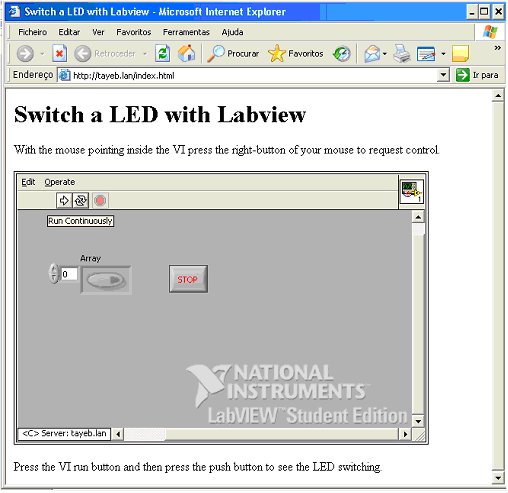
STEP 22Press the virtual button run continuously

and then press the virtual button and the arrow with light up

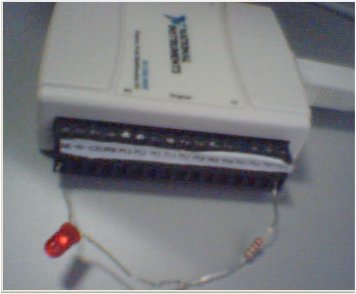
And so will light up the LED in the real circuit

Conclusions

With just a couple of electronic components and NI tools, we have build step by step a Virtual Instruments (VI).  It is is is quite easy with the graphic programming language of Labview.

We will next control the VI from Internet using the tools that Labview offers.

Posted in Electronic Projects, Internet of Things | Tagged , , , , | 2 Comments

Access Control with RFID Tags

Introduction

It is quite easy to read IDs of RFID tags, using Parallax’s serial or USB RFID card reader. If you have two RFID cards at least, and of course Parallax RFID reader, you can set up, without hassle, the below described project. This blog contains several articles that show how easy it is, to control and communicate with electronic devices with Processing.

Objectives

Read RFID cards, using serial communications of Processing and Parallax RFID Card Reader, and show  useful information on-screen with user interaction.

Pre-Requirements

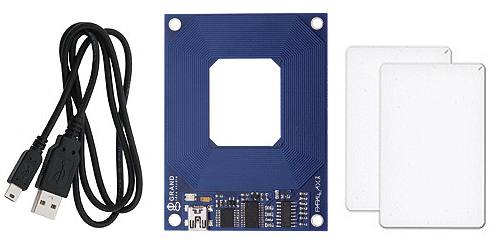
Installed Processing environment, RFID Card Reader USB #28340 from Parallax, at least 2 RFID Cards, and a USB cable for connecting between RFID Card Reader and PC.


The Experimental Set


Connecting to PC

The RFID Card Reader when correctly installed will be shown as a serial device.  Check the port number where the RFID reader is connected in Control Panel – > System – > Hardware tab -> Device Manager button -> Ports (COM and LPT). In this experiment the serial port was COM4. After cheking the port number you just need to take note of it to be introduced into next Processing sketch.

The Processing Sketch

Start a new sketch in Processing, and save it as rfid.pde.

The code for rfid.pde:


// Sketch code based on the one found in "Reading RFID Tags in Processing" chapter
// of the book Making Things Talk published by O'Reilly

import processing.serial.*;

Serial myPort;
String tagID="";

void setup() {
size(350,150);
myPort = new Serial(this, "COM4", 2400);
myPort.buffer(12);

PFont myFont = createFont(PFont.list()[2], 24);
textFont(myFont);
}

void draw(){
background(0);
text(tagID, width/4 + 12, height/2 - 24);
}

void serialEvent(Serial myPort) {
tagID = trim(myPort.readString());
}

Make the adequate COM port changes in your sketch line 8 myPort = new Serial(this, “COM4”, 2400);
to your PC’s installed RFID Card COM port number. Run the sketch and check the TagIDs of both cards. In this case the codes obtained were 34009EA5AF and 0F00296C9FF. The former was chosen as valid card for next sketch. In your case it will be another number.

We will next produce our final sketch. Start a new Sketch in Processing and save it as rfid1.pde

TTS library is required to add voice to the project. TTSLib from GuruBlog is used. Install the unzipped file into your libraries folder of Processing. The library will be imported by Processing. Add image (in this case 100×100 tayeb.jpg is used) to your Processing projects folder, usually found under my Documents\Processing.

Our folder here will be rfid1.

So here is the code for our final rfid1.pde sketch:

// Sketch code based on the one found in "Reading RFID Tags in Processing" chapter
// of the book Making Things Talk published by O'Reilly
// Library TTSLib from GuruBlog found at http://www.local-guru.net/blog/pages/ttslib is required

import processing.serial.*;
import guru.ttslib.*;

TTS tts;
Serial myPort;
String tagID="";

void setup() {
size(350,150);
myPort = new Serial(this, "COM4", 2400);
myPort.buffer(12);

PFont myFont = createFont(PFont.list()[2], 24);
textFont(myFont);
smooth();
tts = new TTS();

}

void draw(){
background(0);

if (tagID.equals("34009EA5AF")) {
PImage b;
b = loadImage("tayeb.jpg");
image(b, 20, 20);
text(tagID, width/2 - 6, height/2 - 24);
text("TAYEB", width/2 - 6, height/2);
}
else {
text(tagID, width/4 + 6, height/2 + 12);
}
}
void serialEvent(Serial myPort) {
tagID = trim(myPort.readString());
if (tagID.equals("34009EA5AF")) {

tts.speak("Hi! Welcome Tayeb!");
}

else {
tts.speak("Invalid Card!");
}
}

Make the adequate changes as shown below in following images:


Port number of installed RFID reader


Other required changes


Now run the sketch. If you read the cards you will hear voice. In this case “Invalid card!” or “Hi Welcome Tayeb!”., or whatever name you have chosen. In our project with sketch code as above, the follow results were drawn on the PC’s screen:


Valid card


Invalid card


In fact any other RFID card, besides the chosen one, will be considered invalid.

Conclusions

Though this actual project is quite simple and the code is not neat, bub it can ve improved. As something extra and quite simple one could add a serial controlled relay or another micrcontroller controlled device.

Of course projects with Visual C#, and other programming languages, can be made to talk to RFID cards, and be quite sophisticated. Some useful RFID projects can be attendance control, stock control, livestock identification, etc.

RFIDs are here to stay, and are everywhere these days. It is quite important to learn to work with them.

Acknowledgements

A special thanks is due to Tom Igoe, author of O’Reilly’s  book“Making Things Talk” for the code with Processing.

Posted in Electronic Projects, Information Technolody, Programming | Tagged , , , , , | 4 Comments

Bluemote – remote control of a 8051 robot with bluetooth

Pedro Vicente

About the author:

Pedro Vicente, 21 years old,  is a 3rd year Electrical Engineering student at Institutto Superior Tecnico (IST), Lisbon, Portugal. During the Summer of 2010 spent a month at ALIATRON as a trainee, when among other projects did the one being presented here.  His main interestes are obviously electronics and robotics. His hobby is to play music: he plays piano, and trombone. Pedro is also member of a choir group.

 Introduction

The aim of this project was to experiment with a control system using bluetooth communication, firstly with simple PC control, and then with web control, after setting up a webserver.

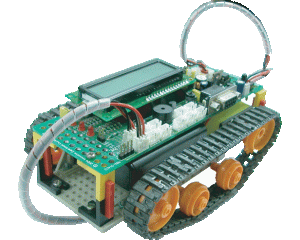
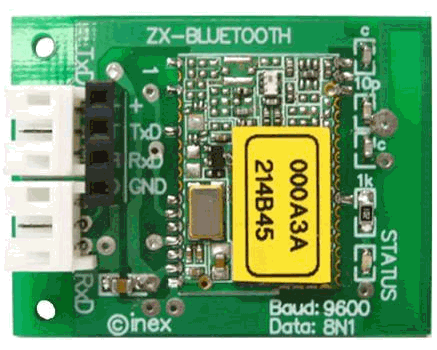
A practical example was used: a 8051 robot “Robo-51“, from Inex, and distributed in Portugal by Aliatron. The bluetooth device used was a serial type “ZX-Bluetooth“, also from Inex, and a product sold by Aliatron.

The Experimental Setup

– Robot-51, Inex
–  Zx-Bluetooth, Inex
–  Bluetooth Micro Adapter Class I,Sweex
–  BlueSoleil 5.4 (software)
–  Termite 2.4 (software)
–  SerialTerm (software)
–  XAMPP server (software)
–  RIDE 51 V6.1 compiler, Raissonance (software)
–  FLIP V2.2, programmer Atmel (software)

Robo-51

Robo-51 from Inex

ZX-Bluetooth

Serial Bluetooth “ZX-Bluetooth” from Inex

Bluetooth Micro Adapter

Class I Bluetooth Micro Adapter from Sweex

The Experiment Itself

An original library of “Robo-51” for infrared control was modified to interpret the data received from serial bluetooth device “ZX-Bluetooth”. The library named as remoteb.h, has the following code:


/*--------------------------------------------------------------------------*/

// Program             : Decode command from Bluetooth

// Description       : receive command from Bluetooth to control robot

// Filename            : remoteb.h

// C compiler         : RIDE 51 V6.1

// Adapted to bluetooth with baudrate 9600 bps by Pedro Vicente

/*--------------------------------------------------------------------------*/

sbit irm_data = P3^2;          // Define port input remote sensor

unsigned char ir_command=0;         // Define for buffer command from Easy remote

/*****************************************************************************/

/****************** Function Delay for baudrate 9600 *************************/

/*****************************************************************************/

void delay_baud9600()      {                              // Delay baudrate 9600 bps

unsigned int x,a;                                 // Keep for counter loop

for(x=0;x<1;x++) {

for(a=0;a<91;a++);              // Loop for delay 104 us  // inicially at 833 us

}

}

/*****************************************************************************/

/****************** Function Delay for baudrate 9600(for start bit) **********/

/*****************************************************************************/

void start_9600()  {                                            // Delay baudrate 9600 while start bit

unsigned int x,a;                                 // Keep for counter loop

for(x=0;x<1;x++) {

for(a=0;a<46;a++);              // Loop for delay 53us //inicially at 416 us

}

}

/*****************************************************************************/
/************* Service interrupt routine for receive command ******************/
/*****************************************************************************/
void service_ex0(void) interrupt 0 {
unsigned char i;   // Define for counter loop
if(irm_data==0) {   // Check start bit true?
  		start_9600();  		// Delay for start bit
  		for(i=0;i<8;i++)  {		// For loop count 8 time(for receive data 8 bit)
  			delay_baud9600(); 		// Delay for data 1 bit
  			ir_command = ir_command>>1;		// Shift data bit to right 1 time
  			if(irm_data)				// If data bit = high
  			ir_command = ir_command | 0x80;		// Config data bit = "1"
  		}
		delay_baud9600();				// Delay for stop bit
	}
}
/*****************************************************************************/
/************** Function read Command from Bluetooth ***********************/
/*****************************************************************************/
unsigned char get_remote(void) {
	return(ir_command);		// Return command
}
/*****************************************************************************/
/*********************** Function clear command ******************************/
/*****************************************************************************/
void clear_remote() {
	ir_command = 0;         // Clear command
}

/*****************************************************************************/
/*********************** Function initial for Bluetooth ********************/
/*****************************************************************************/
void remote_init(void) {
	irm_data = 1;   	// Configuration input P3.2
	EX0 = 1;        	// Enable External interrupt0
	IT0 = 1;         	 // Detect falling edge
	EA = 1;		// Enable interrupt all
}

Next a firmwware program in C was written for the 8051 microcontroller in “Robo-51”, named as act19_bl.c:


/*--------------------------------------------------------------------------*/

// Program: Remote control robot

// Description : Robot controlled by Bluetooth control

//Robot receive command  from bluetooth by serial communication at baudrate 9600 bps

// Filename: Bluemote.c

// C compiler: RIDE 51 V6.1

/*--------------------------------------------------------------------------*/

#include <C51ac2.h>                          // Header include register of T89C51AC2

#include <delay_robo51.h>              // Module function delay process

#include <dc_motor.h>                      // Module function drive DC motor

#include <remoteb.h>                        // Module function for remote

#include <sound_robo51.h>            // Module function drive sound

#include <lcd_robo51.h>                   // Module function LCD

#define pow 200                                  // Define constant for power drive DC motor

void run_fd(int time_spin) {

motor_fd(2,pow);                                // Motor channel 2 forward

motor_fd(1,pow);                                // Motor channel 1 forward

delay_ms(time_spin);                        // Delay time for robot drive forward

}

void run_bk(int time_spin) {

motor_bk(2,pow);                               // Motor channel 2 backward

motor_bk(1,pow);                               // Motor channel 1 backward

delay_ms(time_spin);                         // Delay time for robot drive backward

}

void turn_left(int time_spin) {

motor_fd(2,pow);                                // Motor channel 2 forward

motor_bk(1,pow);                               // Motor channel 1 backward

delay_ms(time_spin);                         // Delay time for robot spin turn left

}

void turn_right(int time_spin) {

motor_bk(2,pow);                               // Motor channel 2 backward

motor_fd(1,pow);                                // Motor channel 1 forward

delay_ms(time_spin);                         // Delay time for robot spin turn right

}

void main() {

beep();                                                  // Sound beep 1 time

remote_init();                                       // Initial remote

lcd_init();                                             // Initial Lcd

while(1)  {                                            // Infinite loop

switch(get_remote()) {       // Check command for receive

case 'a'  :run_bk(100);         // Drive robot backward when receive command "a"

clear_remote();     // Clear command

break;                    // Out from case

case 'b' : turn_right(100);                   // Turn right when receive command "b"

clear_remote();                    // Clear command

break;                                    // Out from case

case 'c' : turn_left(100);                      // Turn right when receive command "c"

clear_remote();                    // Clear command

break;                                    // Out from case

case 'd' : run_fd(100);                         // Turn right when receive command "d"

clear_remote();                    // Clear command

break;                                    // Out from case

case 's':  motor_stop(all);                  // robot stop

clear_remote();                    // Clear command

break;                                    // Out from case

default:  break;                                    // Out from case

}

}

For more details on the main program, plus programming the robot “Robo-51,” and many other applications for the robot, check the “Robo-51” manual  found at Inex’s online site. You will find there the other required libraries which will be needed to be included into the project.

We use the software RIDE from Raissonance to compile the above *.c file (plus the library *.h), and the Atmel’s software FLIP from Atmel to load the program into the 8051 microcontroller of “Robo-51”.

To test the program in 8051, Termite 2.4 and SerialTerm were used. Both programs are used to test serial communications in micrcontrollers, and were quite handy in this case. Commands were sent to the robot, by writing on the keyboard. (check below first part of the video)

Important Note:  Set serial ports with baudrate at 9600 bps as ZX-Bluetooth works only at this baud rate. In our case the serial port used was COM2.

The next step would be to make automatic the sending of commands, instead of writting the commands and pressing Click or ENTER. We used the following Visual Basic Scripts (VBS) to send the commands. This VBS  procedure was proposed by Bill Blanton in the GNT forum. These VBS send commands with ley letters “d”  for foward, “a” for backward, “c” for turning leftwards, “b” for turning rightwards and “s” for stopping.


/*--------------------------------------------------------------------------*/

// Program: Send letter to serial port

// Description: Send “d” to serial port to move foward

// Filename: fw.vbs

/*--------------------------------------------------------------------------*/

Set oShell = WScript.CreateObject("WScript.Shell")

oShell.Run("C:\r51\serialterm com2 9600")

WScript.Sleep(500) 'wait (0.5 seconds (# milliseconds))

oShell.Sendkeys "d"

oShell.Sendkeys"{ESC}"


/*--------------------------------------------------------------------------*/

// Program: Send letter to serial port

// Description: Send “a” to serial port to move backward

// Filename: bk.vbs

/*--------------------------------------------------------------------------*/

Set oShell = WScript.CreateObject("WScript.Shell")

oShell.Run ("C:\r51\serialterm com2 9600")

WScript.Sleep(500) 'wait (0.5 seconds (# milliseconds))

oShell.Sendkeys "a"

oShell.Sendkeys"{ESC}"


/*--------------------------------------------------------------------------*/

// Program: Send letter to serial port

// Description: Send “b” to serial port to turn rigth

// Filename: rg.vbs

/*--------------------------------------------------------------------------*/

Set oShell = WScript.CreateObject("WScript.Shell")

oShell.Run ("C:\r51\serialterm com2 9600")

WScript.Sleep(500) 'wait (0.5 seconds (# milliseconds))

oShell.Sendkeys "b"

oShell.Sendkeys"{ESC}"


/*--------------------------------------------------------------------------*/

// Program: Send letter to serial port

// Description: Send “c” to serial port to turn left

// Filename: lf.vbs

/*--------------------------------------------------------------------------*/

Set oShell = WScript.CreateObject("WScript.Shell")

oShell.Run ("C:\r51\serialterm com2 9600")

WScript.Sleep(500) 'wait (0.5 seconds (# milliseconds))

oShell.Sendkeys "c"

oShell.Sendkeys"{ESC}"


/*--------------------------------------------------------------------------*/

// Program: Send letter to serial port

// Description: Send “s” to serial port to stop

// Filename: st.vbs

/*--------------------------------------------------------------------------*/

Set oShell = WScript.CreateObject("WScript.Shell")

oShell.Run ("C:\r51\serialterm com2 9600")

WScript.Sleep(500) 'wait (0.5 seconds (# milliseconds))

oShell.Sendkeys "s"

oShell.Sendkeys"{ESC}"

Having achieved PC control of  “Robo-51”, a web server was setup in order to control de robot though Internet. The Internet control of “Robo-51” was achieved with an approach based on published work here Internet Control of a Picaxe by Tayeb Habib.

The main server

A Windows-based XAMPP server was installed in a PC. The server was hooked to a local network with a fixed local IP. The application being situated in a network that had no fixed public IP, DynDNS services were used. The router routes all external demands to the local fixed IP.

Windows XP and later do not allow easy RS232 control through Internet. To  overcome such a blockage, RS232 control was done through DOS, using SerialTerm as mentioned above. The VB scripts of above were run in php, and used to command “Robo-51”. All of following files were placed in c:\xampp\htdocs

index.php

<? php
echo "<head><title>Internet Control of a 8051 Robot</title></head>
<body>
<center>
<font face=\"arial, sans-serif\" color=>
<h2 align='center'><font color=\"#4992BB\">Internet Control of a 8051 Robot</font></h2>
<hr align='center' size=\"4\" color=\"#4992BB\"><center>
<TABLE WIDTH=150 BORDER=0 CELLPADDING=0>
<TR> <TH COLSPAN=3><font face=\"arial, verdana\" color=\"#4992BB\">Bluemote</font></TH> </TR>
<TR> <TD></TD>      <TD><a href='processing.php?action=fw'>
<img src='forw.gif' border='0'></a></TD> <TD></TD>   </TR>
<TR> <TD><a href='processing.php?action=rg'> <img src='right.gif' border='0'></a></TD>
<TD> <a href='processing.php?action=st'><img src='stop.gif' border='0'></TD>
<TD><a href='processing.php?action=lf'> <img src='left.gif' border='0'></a></TD></TR>
<TR> <TD></TD>  <TD><a href='processing.php?action=bk'>
<img src='back.gif' border='0'></a></TD> <TD></TD></TR>
</TABLE></center>
<hr align='center' size=\"4\" color=\"#4992BB\">

</center>
</body>

processing.php


<?php

//check the GET actions variable to see if something needs to be done

if (isset($_GET['action'])) {
//Action has been requested

if ($_GET['action'] == "fw") {

$page = "index.php";

header("Refresh: 2; URL=\"" . $page . "\"");

exec ('C:\r51\fw.vbs');

echo "
<hr align='center' size=\"4\" color=\"#4992BB\"><center>
<font face=\"arial, sans-serif\"><b>Moving Forward</b></font>";

}

else if ($_GET['action'] == "bk") {

$page = "index.php";

header("Refresh: 2; URL=\"" . $page . "\"");

exec ('C:\r51\bk.vbs');

echo "
<hr align='center' size=\"4\" color=\"#4992BB\"><center>
<font face=\"arial, sans-serif\"><b>Moving Backward</b></font>";
}
else if ($_GET['action'] == "st") {

$page = "index.php";

header("Refresh: 2; URL=\"" . $page . "\"");

exec ('C:\r51\st.vbs');

echo "
<hr align='center' size=\"4\" color=\"#4992BB\"><center>
<font face=\"arial, sans-serif\"><b>Stopping...</b></font>";
}
else if ($_GET['action'] == "rg") {

$page = "index.php";

header("Refresh: 2; URL=\"" . $page . "\"");

exec ('C:\r51\rg.vbs');

echo "
<hr align='center' size=\"4\" color=\"#4992BB\"><center>
<font face=\"arial, sans-serif\"><b>Turning Right</b></font>";
}
else if ($_GET['action'] == "lf") {

$page = "index.php";

header("Refresh: 2; URL=\"" . $page . "\"");

exec ('C:\r51\lf.vbs');

echo "
<hr align='center' size=\"4\" color=\"#4992BB\"><center>
<font face=\"arial, sans-serif\"><b>Turning Left</b></font>";
}
}
?>

Please note that *.vbs files must be in c:\r51  as can be seen in above VB scripts.

Finally the XAMPP server must be tested pointing the browser to http://localhost. If all is OK the server can be put online.

Hull report is available at:

Bluemote_English.pdf (18MB)

A simulation of the application (useful to see how the appplication will look like) can be viewed at:

http://aliatron.dynalias.com/r51 (now switched off!!)

The following video shows the application with “Robo-51”:

Acknowledgments

A special thank you is due to Tayeb Habib owner of Aliatron and my supervisor for Summer traineeship at that portuguese company. Also I thank my former workmate at Aliatron, Raquel, for all the support and her welcome spirit.

Published in RedAcacia by Tayeb

Posted in Electronic Projects, Internet of Things, Programming, Robotic Projects | Tagged , , , , , , | 2 Comments

Controlling a robot with bluetooth-enabled cell phone

Tested on Nokia N97 and Blackberry Bold 9700.

Introduction

After having recently designed a virtual gamepad to control a robot, making use of a serial bluetooth device, I thought why not do the same with a cell phone.

My Nokia N97 has bluetooth and using it to control the robot seemed to be the most attractive proposal.

My first development tool was Psy60 (Nokia’s Python), to control the robot, but soon I found out that the bluetooth libraries seemed to be geared towards controlling a PC.

So, effectively having gained experience with Processing, my next immediate thought was to use Mobile Processing, after having read about a Roomba hacking and a patch for serial bluetooth library.

Please check addenda below: tested and verified on Blackberry Bold 9700.

Required equipment

 A 8051 robot “Robo-51” (could be a robot with any other micrcontroller) with ZX-Bluetooth module, running a firmware for bluetooth control (or any other serial control), and PC with Windows and Mobile Processing software.

Robo-51

8051-based robot “Robo-51”

Serial bluetooth module “ZX-Bluetooth”

Please check the Virtual Gamepad project. The sketch as explained in the first part of code is based on the Roomba hacking and ideas from a NXT Symbian project.  It uses the patched bluetooth library of Roomba project. All the patch does is to allow one to specify short UUIDs when searching bluetooth devices.

Mobile Processing Sketch

So here is the sketch:

// Based on original code Tic-Tac-Toe code by Francis Li, found at
// http://mobile.processing.org/learning/example.php?name=tictactoe
// and on roombaCtrl by Tod E. Kurt, tod@todbot.com
// http://roombahacking.com, and extra coding ideas from
// Pedro Miguel   ap0cn3t@gmail.com http://nxt-symbian.sourceforge// .net
// code adapted for Robo-51 by Tayeb Habib, tayeb.habib@gmail.com
// https://redacacia.wordpress.com (check the site for more projects)
// compatibility tested for Nokia N97 and Blackberry Bold 9700

// This needs my patched bluetooth library that allows short UUIDs
// found at http://roombahacking.com

import processing.bluetooth.*;

// state machine sates
final int STATE_START    = 0;
final int STATE_FIND     = 1;
final int STATE_DRIVE    = 2;

// state machine state var
int state;

// bluetooth library
Bluetooth bt;
// discovered services
Service[] services;
// status message
String msg;
// connection to robo51
Client cl;

PFont font;

// ------------------------------------------------------------------
// robo51 opcodes
// ------------------------------------------------------------------

byte[] fwd = new byte[]{ (byte)0x64 };   // ascii key letter "d"
byte[] bwd = new byte[]{ (byte)0x61 };   // ascii key letter "a"
byte[] left = new byte[]{ (byte)0x63 };   // ascii key letter "c"
byte[] right = new byte[]{ (byte)0x62 };   // ascii key letter "b"
byte[] stop = new byte[]{ (byte)0x73  };   // ascii key letter "s"

///
void setup() {
  font = loadFont();
  textFont(font);
  bt = new Bluetooth(this, Bluetooth.UUID_SERIALPORT);
  state = STATE_START;
}

void destroy() {
  background(255);
  fill(0);
  text("Exiting...", 2, 2, width - 4, height - 4);
  bt.stop();
}

//
void draw() {
  background(0xcc,0xcc,0xff);

  if (state == STATE_START) {
    fill(0);
    textAlign(LEFT);
    text("Welcome to Robo-51\n\nPress a key to search the robot", 2, 2, width - 4, height - 4);
  }
  else if (state == STATE_FIND) {
    fill(0);
    textAlign(LEFT);
    if (services == null) {
      text("Looking for Robo-51...\n\n" + msg, 2, 2, width-4, height-4);
    }
    else {
      String list = "Ports found:\n";
      for (int i = 0, len = length(services); i < len; i++)
        list += i + ". " + services[i].device.name + "\n";
      text(list, 2, 2, width-4, height-4);
    }
  }
  else if (state == STATE_DRIVE) {
    noFill();
    text("Robo-51 control:\n"+
         "Use arrows to drive\n"+
         "press A, or B, or C, or D to stop\n"+
         msg, 2, 2, width-4, height-4);
  }

}

//
void libraryEvent(Object library, int event, Object data) {
  if (library == bt) {
    switch (event) {
    case Bluetooth.EVENT_DISCOVER_DEVICE:
      msg = "Found device at: " + ((Device) data).address + "...";
      break;
    case Bluetooth.EVENT_DISCOVER_DEVICE_COMPLETED:
      msg = "Found " + length((Device[]) data) + " devices, looking for serial port...";
      break;
    case Bluetooth.EVENT_DISCOVER_SERVICE:
      msg = "Found serial port on " + ((Service[]) data)[0].device.address + "...";
      break;
    case Bluetooth.EVENT_DISCOVER_SERVICE_COMPLETED:
      services = (Service[]) data;
      msg = "Search complete. Pick one.";
      break;
    case Bluetooth.EVENT_CLIENT_CONNECTED:
      cl = (Client) data;
      msg = "wtf. client connectd.";
      break;
    }
  }
}

//

//
void keyPressed() {
  if (state == STATE_START) {
    services = null;
    bt.find();
    state = STATE_FIND;
    msg = "Looking for devices...";
  }
  else if (state == STATE_FIND) {
    if (services != null) {
      if ((key >= '0') && (key <= '9')) {
        int i = key - '0';
        if (i < length(services)) {
          msg = "connecting...";
          cl = services[i].connect();
          state = STATE_DRIVE;
          msg = "ready";
        }
      }
    }
  }
  else if (state == STATE_DRIVE) {

    parse_robo51key(keyCode,key);

  }

}

void parse_robo51key(int akeyCode, int akey) {
  switch(akeyCode) {
    case UP:
      msg = "forward";
      robo51_send(fwd);
      break;
    case DOWN:
      msg = "backward";
      robo51_send(bwd);
      break;
    case LEFT:
      msg = "left";
      robo51_send(left);
      break;
    case RIGHT:
      msg = "right";
      robo51_send(right);
      break;
    case CENTER:
      msg = "stop";
      robo51_send(stop);
      break;
    default:
      msg = "stop";
      robo51_send(stop);
      break;

    } // switch(keyCode)
}

void robo51_send(byte[] buffer){
  cl.write(buffer);
  cl.flush();
}

Deploying

If you are absolute beginner with Mobile Processing I suggest you follow the tutorial “How to write apps with Mobile Processing on your N95” (if the link does not work please check: Mobile Application Development with Mobile Processing) . The tutorial will teach you how to make simple Mobile Processing applications and to deploy into your cell phone.

The control program

The program controls Robo-51 from Inex with the commands:

Key letter “d” foward, “a” backwards, “c” turn leftwards, “b” turn rightwards and “s” stop.  The commands are defined in the above sketch under “Robo-51 opcodes”. Arrow keys on N97 keyboard control the robot. The key ENTER on the N97 keyboard is used as FIRE button to stop the robot

When the program is launched, after it identifies the bluetooth devices, SPP device will appear with appropriate number 0, 1, 2 or whatever tag before it. One has to choose SPP with numeric option on N97 keyboard.

The firmware that accepts commands in above sketch was written by Pedro Vicente, a Summer vacation trainee in my company Aliatron. Pedro has already published his project here. The following video, recently published in youtube by Raquel (Pedro’s girlfriend), shows “Robo-51” in action:

The program on the PC’s screen shown in the video is an application written by Pedro that allows web control of Robo-51.

I hope to next control the robot with a Psy60 program.  When it is done, I will publish it here. I have mentioned N97 as the program was tested with Nokia’s N97. Perhaps the program will work perfectly in other Nokia cell phones with Symbian OS (N97’s OS is Symbian).

——————————

Addenda on 06/07/2011:

I have tested the unaltered jar file made for Nokia N97, on my Blackberry Bold 9700 (v.6.6.0.124) by installing the jar file, after copying it into the cell phone’s memory. The robot responded well, and moved forward, backward, left and right, and stopped as expected with respective voice indicating the action. All the movements of the robot were made by playing with Blackberry’s joystick, i.e. track pad. The bluetooth connection of the Blackberry and the robot’s bluetooth serial module were duly detected. When the bluetooth connection on the Blackberry was not on, the cell phone asked for permission to switch it on, as was expected. Summing up: a fully satisfactory control of the robot is achieved with Blackberry Bold 9700. Implementations in other Bloackberry cell phones should give similar results.

——————————-

Addenda on 09/17/2010:

Adding sound to the robot control

In my previous project of Virtual Gamepad text-to-speech was added and so something similar would be interesting. So, effectively that’s what I did this time.

Text-to-speech

Though Nokia N97 supports text-to-speech, Mobile Processing has no library, as Psy60 has.

I didn’t want to record sounds and make them sound “robotic”, so I searched the Web, and found a freeware that does it. Download “TTSReader” and create .wav files for all the commands. All commands can be downloaded here (you will need 7z to uncompress):

Sound files (kept at Bitbucket, a free repository for smal users)

Copy these files into a sub-directory that you will name data in your MobileProcessing project folder (found normally under c:\my documents\.

Now you are ready to follow the above steps with following new Mobile Processing sketch:


// New sketch with sound support
// Based on original code Tic-Tac-Toe code by Francis Li, found at
// http://mobile.processing.org/learning/example.php?name=tictactoe
// and on roombaCtrl by Tod E. Kurt, tod@todbot.com
// http://roombahacking.com, and extra coding ideas from
// Pedro Miguel, ap0cn3t@gmail.com http://nxt-symbian.sourceforge.net
// code adapted for Robo-51 by Tayeb Habib, tayeb.habib@gmail.com
// https://redacacia.wordpress.com (check the site for more projects)
// compatibility tested for Nokia N97

// This needs my patched bluetooth library that allows short UUIDs
// found at http://roombahacking.com and msound library found at
// http://mjs.darkgreenmedia.com/site/

import processing.bluetooth.*;
import mjs.processing.mobile.msound.*;

MSound mySound;

// state machine sates
final int STATE_START    = 0;
final int STATE_FIND     = 1;
final int STATE_DRIVE    = 2;

// state machine state var
int state;

// bluetooth library
Bluetooth bt;
// discovered services
Service[] services;
// status message
String msg;
// connection to robo51
Client cl;
PFont font;

// ------------------------------------------------------------------
// robo51 opcodes
// ------------------------------------------------------------------

byte[] fwd = new byte[]{ (byte)0x64 };   // ascii key letter "d"
byte[] bwd = new byte[]{ (byte)0x61 };   // ascii key letter "a"
byte[] left = new byte[]{ (byte)0x63 };   // ascii key letter "c"
byte[] right = new byte[]{ (byte)0x62 };   // ascii key letter "b"
byte[] stop = new byte[]{ (byte)0x73  };   // ascii key letter "s"

///
void setup() {
  font = loadFont();
  textFont(font);
  bt = new Bluetooth(this, Bluetooth.UUID_SERIALPORT);
  state = STATE_START;
  mySound = MSoundManager.loadSound("start.wav");
  mySound.play();
}

void destroy() {
  background(255);
  fill(0);
  text("Exiting...", 2, 2, width - 4, height - 4);
  bt.stop();
}

//
void draw() {
  background(0xcc,0xcc,0xff);

  if (state == STATE_START) {
    fill(0);
    textAlign(LEFT);
    text("Welcome to Robo-51\n\nPress a key to search the robot", 2, 2, width - 4, height - 4);
  }
  else if (state == STATE_FIND) {
    fill(0);
    textAlign(LEFT);
    if (services == null) {
      text("Looking for Robo-51...\n\n" + msg, 2, 2, width-4, height-4);
    }
    else {
      String list = "Ports found:\n";
      for (int i = 0, len = length(services); i < len; i++)
        list += i + ". " + services[i].device.name + "\n";
      text(list, 2, 2, width-4, height-4);
    }
  }
  else if (state == STATE_DRIVE) {
    noFill();
    text("Robo-51 control:\n"+
         "Use arrows to drive\n"+
         "press ENTER to stop\n"+
         msg, 2, 2, width-4, height-4);
  }

}

//
void libraryEvent(Object library, int event, Object data) {
  if (library == bt) {
    switch (event) {
    case Bluetooth.EVENT_DISCOVER_DEVICE:
      msg = "Found device at: " + ((Device) data).address + "...";
      break;
    case Bluetooth.EVENT_DISCOVER_DEVICE_COMPLETED:
      msg = "Found " + length((Device[]) data) + " devices, looking for serial port...";
      break;
    case Bluetooth.EVENT_DISCOVER_SERVICE:
      msg = "Found serial port on " + ((Service[]) data)[0].device.address + "...";
      break;
    case Bluetooth.EVENT_DISCOVER_SERVICE_COMPLETED:
      services = (Service[]) data;
      msg = "Search complete. Pick one.";
      break;
    case Bluetooth.EVENT_CLIENT_CONNECTED:
      cl = (Client) data;
      msg = "wtf. client connectd.";

      break;
    }
  }
}

//

//
void keyPressed() {
  if (state == STATE_START) {
    services = null;
    bt.find();
    state = STATE_FIND;
    msg = "Looking for devices...";
  }
  else if (state == STATE_FIND) {
    if (services != null) {
      if ((key >= '0') && (key <= '9')) {
        int i = key - '0';
        if (i < length(services)) {
          msg = "connecting...";
          cl = services[i].connect();
          state = STATE_DRIVE;
          msg = "ready";
        }
      }
    }
  }
  else if (state == STATE_DRIVE) {

    parse_robo51key(keyCode,key);

  }

}

void parse_robo51key(int akeyCode, int akey) {
  switch(akeyCode) {
    case UP:
      mySound = MSoundManager.loadSound("forward.wav");
      mySound.play();
      msg = "forward";
      robo51_send(fwd);
      break;
    case DOWN:
      mySound = MSoundManager.loadSound("backward.wav");
      mySound.play();
      msg = "backward";
      robo51_send(bwd);
      break;
    case LEFT:
      mySound = MSoundManager.loadSound("left.wav");
      mySound.play();
      msg = "left";
      robo51_send(left);
      break;
    case RIGHT:
      mySound = MSoundManager.loadSound("right.wav");
      mySound.play();
      msg = "right";
      robo51_send(right);
      break;
    case FIRE:
      mySound = MSoundManager.loadSound("stop.wav");
      mySound.play();
      msg = "stop";
      robo51_send(stop);
      break;
    default:
      mySound = MSoundManager.loadSound("stop.wav");
      mySound.play();
      msg = "stop";
      robo51_send(stop);
      break;

    } // switch(keyCode)
}

void robo51_send(byte[] buffer){
  cl.write(buffer);
  cl.flush();
}

You will now need to Export and Deploy! That’s it!
After installing in your cell phone you will now have a very interactive control. Have fun!

Posted in Electronic Projects, Mobile Apps, Programming, Robotic Projects, Uncategorized | Tagged , , , , , , | 5 Comments

Bluemote – A Virtual Gamepad for Bluetooth Control of a Robot

This application was born after a student trainee, Pedro Vicente, spent his Summer at my company Aliatron and did a technical project with a 8051-based robot “Robo-51” from Inex . Pedro has already published here in this blog, his work that is based on remote control of a robot with bluetooth.

Objectives:

Use Processing sketch to create a virtual gamepad that controls a bluetooth-enabled robot, in this case a Robo-51 from Inex. The virtual gamepad must control the robot using serial communication capabilities of a bluetooth module (ZX-Bluetooth). Voice-enable the gamepad with TTS capabilities of Windows.

Equipment Setup:

A 8051 robot “Robo-51” (could be any other micrcontroller) with ZX-Bluetooth module, running a firmware for bluetooth control (or any other serial control), and PC with Windows and Processing software.

Robo-51

8051-based robot “Robo-51”

Serial bluetooth module “ZX-Bluetooth”

Bluemote – Virtual Gamepad:

The  sketch in Processing named bluemote has the following code:


import processing.serial.*;     //Import serial library
import guru.ttslib.*;           //Import tts text-to-voice library
// Based on serial example of Processing 1.2.1. To be used with
// 8051 "Robo-51" from INEX, bluetooth enabled wihZX-Bluetooth 
// Sketch by Tayeb tayeb.habib@gmail.com www.redacacia.wordpress.com
// This sketch uses ttslib for sound, library downloadable at
// www.local-guru.net/blog/pages/ttslib

PImage bg;      // Create object from PImage class
Serial myPort;  // Create object from Serial class
TTS tts;        // Create object from Tts class

void setup()
{
  size(318, 184);                             // Sketch of same size as gamepad image                      
 
  myPort = new Serial(this, "COM5", 9600);    // Set comm port
  bg = loadImage("bluemote.jpg");             // Load bluemote image
  tts = new TTS();                            // Create an instance of the TTS class
  tts.speak("Hi! I am Robot Fifty-One");      // Call the speak method
  tts.speak("I am at your orders! Boss!");    // Call the speak method
}
void draw() {
  background(bg);                 // Load bluemote gamepad image as background
 
  if ((mouseOverForw() == true) && mousePressed) {  // If mouse is pressed and over forward button,
    cursor(HAND);                 // Hand cursor
    myPort.write("d");            // Send letter d for forward movement of robot
    tts.speak("Forward");         // Call the speak method
  }
 
  else if ((mouseOverBack() == true) && mousePressed) {  // If mouse is pressed and over backward button,
    cursor(HAND);                 // Hand cursor
    myPort.write("a");            // Send letter c to turn the robot leftwards
    tts.speak("Backward");        // Call the speak method
  }
 
  else if ((mouseOverLeft() == true) && mousePressed){  // If mouse is pressed and over left button,
    cursor(HAND);                 // Hand cursor
    myPort.write("c");            // Send letter c to turn the robot rightwards
    tts.speak("Left");            // Call the speak method
   }
  
  else if ((mouseOverRight() == true) && mousePressed) {  // If mouse is pressed and over right button,
   cursor(HAND);                 // Hand cursor
   myPort.write("b");            // Send letter b to turn the robot rightwards
   tts.speak("Right");           // Call the speak method
   }
  
  else if ((mouseOverStop() == true) && mousePressed){  // If mouse is pressed and over stop button,
   cursor(HAND);                 // Hand cursor
   myPort.write("s");            // Send letter s to stop the robot
   tts.speak("Stopping");        // Call the speak method
   }

  else {
  cursor(HAND);                   // Hand cursor
  }  
}

  boolean mouseOverForw() { // Test if mouse is over control button
  return ((mouseX >= 240) && (mouseX <= 256) && (mouseY >= 63) && (mouseY <= 78));
}
  boolean mouseOverBack() { // Test if mouse is over control button
  return ((mouseX >= 240 ) && (mouseX <= 256) && (mouseY >= 106) && (mouseY <= 121)); 
}
  boolean mouseOverLeft() { // Test if mouse is over control button
  return ((mouseX >= 218) && (mouseX <= 228) && (mouseY >= 84) && (mouseY <= 98)); 
}
  boolean mouseOverRight() { // Test if mouse is over control button
  return ((mouseX >= 272) && (mouseX <= 287) && (mouseY >= 74) && (mouseY <= 96)); 
}      
  boolean mouseOverStop() { // Test if mouse is over stop button
  return ((mouseX >= 47) && (mouseX <= 108) && (mouseY >= 78) && (mouseY <= 132));     
}

Appropriate changes will be required according to the setup namely:

the serial port:  in our case it is COM5, in your case it could be another port

the commands: in our case they are d for forward, a for backwards, c for leftwards, b for rightwards andfor stopping.

The sketch calls a TTS library (link shown within the code) and uploads a background image. The gamepad image that has been used for this sketch is:

Bluemote

Just download it and add to your project folder ususally found within c:/my documents/processing

The 8051-robot firmware and bluetooth:

Pedro Vicente, mentioned above, has published here the whole project envolving the 8051-based robot “Robo-51” and bluetooth. In fact the virtual gamepad can function through any serial connection to any micrcontroller. The commands and the serial port have to be adapted in the sketch.

View a video of Virtual Gamepad and Robo-51:

Conclusions:

Serial communciations library, and other libraries in Processing, offer enormous potential in adding interactivity to electronic projects. Bluemote, the virtual gamepad that has been explained here is an example of how easy it is to make electronic projects to talk and interact with the environment.

Posted in Electronic Projects, Programming, Robotic Projects | Tagged , , , , , , , | 1 Comment

Disk and PC Swap Without Reinstalling Windows

The objectives

I wanted to move my Windows and all other software m my old PC to a new one, with new motherboard and everything else. I just did not want to reinstall Windows, and all of other software, so there began my quest. I wanted also to move to a larger hard disk, since I was buying a new PC with all entailing new hardware, and also because my old hard drive would breakdown one day very soon so was I thinking.

My first hurdle

How to go about it? Well, my first approach was to just clone my hard disk and move it to new PC. I am from the era of Windows 95/98, when one could just get way with cloning a hard disk. With Windows 98 and earlier, at start up Windows would ask for hardware drivers, and one would just update these drivers. To my disgust, I found that one cannot do it anymore with Windows XP, upwards. Windows XP, upwards, would not start, i.e. it crashes in new environment!

Why Windows crashes?

In my quest for solution/solutions, I read lots of junk on the Web, like partially reinstall Windows, play with the registry, format your hard disk, reinstall everything, and God knows what else. Nobody seemed to know something that is obvious, and that is if hard disk (e.g. cloned hard disk) moves to another system, the Windows operating system is in fact at a loss, it just does not know where it is, and when it finally controls the disk from BIOS, it crashes.

Making the Windows install platform-agnostic

The following is totally copy-and-paste from the solution on Internet that worked. Source:http://wp.me/p114TB-1P

To begin with, we need to move the system to a more generic set of platform drivers. The first place to start is in the XP control panel Add and Remove Programs, or on Vista, Programs and Features, where we’ll remove the relevant motherboard drivers. For example, those on nForce-based boards will be removing “NVIDIA Drivers”, those on ATI, can use ATI’s handy “ATI Software Uninstaller” (which will also try to get rid of anything else with a name starting with ‘ATI’, including third party utilities), while Intel and VIA users get their own platform software entries, assuming the vendor software is installed of course.

Once that reboot is out of the way (oh, you’ll be doing a fair amount of rebooting) launch Device Manager (devmgmt.msc), and replace your onboard storage controller with “Standard Dual Channel PCI IDE Controller,” or similar, as shown in Figure 1 below. If it is not listed with the Show compatible hardware checkbox filled, your system may not survive this process unless the new motherboard is from the same chipset vendor.

Figure 1

If you’re still on an AGP system, you’ll want to knock out your AGP drivers in the same manner, but this time the driver to install is “PCI standard PCI-to-PCI bridge”.

Now if you’re on an Intel board, you’ll need to enable Show Hidden Devices from the menu, and have a look in the new tree which appeared: “Non-Plug and Play Devices”. There are two drivers known to cause problems, ‘IntelIDE’ and ‘IntelPPM’, so you will need to uninstall them.

At this stage you may also want to remove your video drivers, since they’ll likely need reinstalling anyway.

Reboot your system for the driver changes to take effect. Now your system is platform agnostic, you could take the hard disk out and put it pretty much anywhere. The one caveat is that you can’t change where the HD logically is, so if you take a HD from the Primary channel (Yes, SATA can still appear to have Secondary and Primary, so check which one your HD is on) to the Secondary, it still won’t work. Most will have it as SATA0 or Primary Master/ Transfer this placement exactly to the new motherboard. If you get a boot problem after performing your motherboard swap, this is the very first place to look.

Now power down and do what needs doing, namely the hardware installation.

Bringing Windows up on the new hardware

Still with us? System booting into Windows? Good, it should be, but if it isn’t, you should boot your Knoppix Live or whatever you use for hardware diagnostics, and check your CPU and RAM. If it still won’t boot, run the repair from your OS CD. If your problem is specifically with a 0x7B blue screen (and only a 0x7B), then it likely isn’t a hardware fault.

After logging on, Windows will complain about drivers, and it will install some automatically. Cancel every one you get the opportunity to cancel. There’s no technical reason to, but it will make this next part a bit cleaner and simpler for you. You’ll next need to be in a special mode of Device Manager, where devices that aren’t installed but do have drivers installed can be shown. From a command prompt, enter the text exactly as shown:


set devmgr_show_nonpresent_devices=1
start devmgmt.msc

In Device Manager, enable Show Hidden Devices as before, and have a look in the various trees. You may be surprised at how much stuff is faded or ghosted out. Delete everything you recognize as a hardware device which is either faded or ghosted out, but leave USB devices alone (see note). Don’t touch anything under “Non-Plug and Play Devices.” There are also some media drivers in “Sound, video and game controllers” that you should leave alone in there. Be very sure that all you’re removing is an actual ghosted hardware device, that you either have or have had, and not a Windows internal driver. The same applies to System Devices, though these are usually branded, so very easy to tell apart.

Note: USB devices are reinstalled on a per-root basis, so it is perfectly normal to see them more than once in any list with Device Manager in this mode.

After yet another reboot, start hitting vendor websites for your latest drivers. You may, of course, need to take the Ethernet drivers off the motherboard’s software disc to get online. You know how to install drivers by now; install what you need.

That’s all you need to do.

In closing, let me stress that with the coming of AHCI based SATA devices, this procedure will become far more system-specific. The reason is that XP doesn’t have generic AHCI drivers, though such drivers are possible. For such systems, we recommend you use the Microsoft method. Though this method will still leave you with all the ghosted items in Device Manager, can still be interrupted by drivers which need to be uninstalled, and will remove all your service packs and hotfixes beyond what is on the OS media, it is quite a bit more reliable, and will tolerate more esoteric system setups.

Obligatory disclaimers

There’s also the stock disclaimer to take into mind. While at Ars (ote from me: the source of this part of this post) we take great measures to make sure we’re not spewing drivel, your particular system may not react predictably, and we can’t accept any blame for that. For the love of all you consider holy, at least have an up-to-date backup to rely on. We will also assume you know the ins and outs of installing, changing, and removing device drivers from the Device Manager. And don’t forget to do all the other things you’d normally do when performing a rebuild, such as updating your Knoppix Live CD, in case you need to do emergency diagnostics. If you’re not comfortable with this at any stage, use the Microsoft link above (it’s safer), but remove the platform drivers first, as they have been shown to interrupt an OS reinstall across motherboards on at least VIA systems.

It also should be pointed out that this brief how-to is Windows XP-centric. So Vista users, your mileage may vary.

The conclusions

I’ve followed the above guidelines, kindness of John Stokes and have worked in very diverse, and different system changes. The solution is obvious: when one installs a fresh Windows, it asks for hardware drivers, as it comes in close touch with them. One install drivers, and Windows should operate smoothly. Most of problems we face are, in fact, incompatibilities, i.e. bad programming of softwares we install, though Windows and Mr Bill Gates are, in my opinion, no innocent bystanders.

I hope this brief post will help those who want to do what I ended up doing, i.e. move to a bigger hard disk and a new PC containing new motherboard, and all other new hardware.

Posted in Information Technolody | Tagged , , , , , , , | Leave a comment

Coding in PHP a Hijri-Gregorian Calendar

Why a Hijri-Gregorian calendar:

Muslims follow a lunar calendar, named Hijri calendar. Hijra means “migration” in arabic. The muslim lunar calendar starts with the migration of the prophet Muhammad, peace be upon him, from Mecca to Medina. The actual muslim hijri year is 1431.

The actual civilian solar calendar, used throughout the world, is called Gregorian. Pope Gregory XIII introduced the calendar by a decree dated 24 February 1582.

The lunar month has 29 or 30 days. The lunar year has 354 or 355 days and effectively “fluctuates” backwards direction (10 or 11 days) in actual solar year. Muslim lunar calendar is quite convenient as, for example, the  month of fasting, Ramadhan, does not fall into the same period of the solar year.

When I first thought of creating a web-based dynamic calendar, using PHP programming language, I found that there was a Muslim site that had a working code. However, they were unwilling to share their code, and only allowed – as they still do – to link to their calendars.

So I was “forced” to think of a solution, and I designed a Hijri-Gregorian calendar about 5 years ago, when I was building a Muslim portal with several forums. The Muslim portal although is still online, has been closed down. On the right column of the Muslim portal, one can see a functioning Hijri-Gregorian calendar.

Sharing the PHP code:

Well, I have decided to share the code for everyone to be able to adapt to his/her website. I never refused to share the code, and as far as I know nobody asked me in the past to share the code. If you really want to control the calendar and use it properly perhaps you need the code. Anyone may adapt to his/her site and does not know how to, I may help, so here is my formal offer of assistance. The only request I make is not to remove the header of the code which mentions the version of code and other things. The code is named icalendar.

Please Note: I am appealing on behalf  of our Muslim brethren in Myanmar (ex-Burma). Described by the UN as being amongst the most persecuted people in the world, over 80,000 Rohingyan people (Burmeses Muslims) have been left without shelter and protection from the recent violence on them. If you are reading this appeal and want to help, donate your money, whatever you can give, even if a dollar or an euro,  direct to Muslim Aid, an UK based Muslim charity that I trust.

So here is the icalendar code:


<?php
/* Hijri-Gregorian Calendar v.1.0. by Tayeb Habib
https://redacacia.wordpress.com tayeb.habib@gmail.com
a special thanks to KHALED MAMDOUH www.vbzoom.com
for Hijri Conversion function
*/

//set here font, background etc for the calendar
$fontfamily = isset($fontfamily) ? $fontfamily : "Verdana";
$defaultfontcolor = isset($defaultfontcolor) ? $defaultfontcolor : "#000000";
$defaultbgcolor = isset($defaultbgcolor) ? $defaultbgcolor : "#E0E0E0";
$defaultwbgcolor = isset($defaultwbgcolor) ? $defaultwbgcolor : "#F5F4D3";
$todayfontcolor = isset($todayfontcolor) ? $todayfontcolor : "#000000";
$todaybgcolor = isset($todaybgcolor) ? $todaybgcolor : "#F2BFBF";
$monthcolor = isset($monthcolor) ? $monthcolor : "#000000";
$relfontsize = isset($relfontsize) ? $relfontsize : "1";
$cssfontsize = isset($cssfontsize) ? $cssfontsize : "7pt";

// obtain month, today date etc
$month = (isset($month)) ? $month : date("n",time());
$monthnames = array("January","February","March","April","May","June","July","August","September","October","November","December");
$textmonth = $monthnames[$month - 1];
$year = (isset($year)) ? $year : date("Y",time());
$today = (isset($today))? $today : date("j", time());
$today = ($month == date("n",time())) ? $today : 32;

// The Names of Hijri months
$mname = array("Muharram","Safar","Rabi'ul Awal","Rabi'ul Akhir","Jamadil Awal","Jamadil Akhir","Rajab","Sha'ban","Ramadhan","Shawwal","Zul Qida","Zul Hijja");
// End of the names of Hijri months 

// Setting how many days each month has
if ( (($month < 8) && ($month % 2 == 1)) || (($month > 7) && ($month % 2 ==
0)) ) $days = 31;
if ( (($month < 8) && ($month % 2 == 0)) || (($month > 7) && ($month % 2 ==
1)) )
$days = 30;

//checking leap year to adjust february days
if ($month == 2)
$days = (date("L",time())) ? 29 : 28;

$dayone = date("w",mktime(1,1,1,$month,1,$year));
$daylast = date("w",mktime(1,1,1,$month,$days,$year));
$middleday = intval(($days-1)/2);

//checking the hijri month on beginning of gregorian calendar
$date_hijri = date("$year-$month-1");
list ($HDays, $HMonths, $HYear) = Hijri($date_hijri);
$smon_hijridone = $mname[$HMonths-1];
$syear_hijridone = $HYear;

//checking the hijri month on end of gregorian calendar
$date_hijri = date("$year-$month-$days");
list ($HDays, $HMonths, $HYear) = Hijri($date_hijri);
$smon_hijridlast = $mname[$HMonths-1];
$syear_hijridlast = $HYear;

//checking the hijri month on middle of gregorian calendar
$date_hijri = date("$year-$month-$middleday");
list ($HDays, $HMonths, $HYear) = Hijri($date_hijri);
$smon_hijridmiddle = $mname[$HMonths-1];
$syear_hijridmiddle = $HYear;

// checking if there's a span of a year
if ($syear_hijridone == $syear_hijridlast) {
$syear_hijridone = "";
}

//checking if span of month is only one or two or three hijri months

if (($smon_hijridone == $smon_hijridmiddle) AND ($smon_hijridmiddle == $smon_hijridlast)) {
$smon_hijri = "<font color=red>".$smon_hijridone."&nbsp;".$syear_hijridlast."</font>";
}

if (($smon_hijridone == $smon_hijridmiddle) AND ($smon_hijridmiddle != $smon_hijridlast)) {
$smon_hijri = "<font color=red>".$smon_hijridone."&nbsp;".$syear_hijridone."-".$smon_hijridlast."&nbsp;".$syear_hijridlast."</font>";
}

if (($smon_hijridone != $smon_hijridmiddle) AND ($smon_hijridmiddle == $smon_hijridlast)) {
$smon_hijri = "<font color=red>".$smon_hijridone."&nbsp;".$syear_hijridone."-".$smon_hijridlast."&nbsp;".$syear_hijridlast."</font>";
}

if (($smon_hijridone != $smon_hijridmiddle) AND ($smon_hijridmiddle != $smon_hijridlast)) {
$smon_hijri = "<font color=red>".$smon_hijridone."&nbsp;".$syear_hijridone."-"."-".$smon_hijridmiddle."-".$smon_hijridlast."&nbsp;".$syear_hijridlast."</font>";
}
// next part of code generates calendar
?>
<div align="center">
<center><table border="0" cellpadding="0" cellspacing="1" width="100%"
bgcolor='black'>
<tr>
<td valign="top" align="center">
<table border="1" cellpadding="0" cellspacing="0" width="100%"
bgcolor='white'
valign='top'>
<tr>
<td bgcolor="#C6D4E5" colspan="7" align="center"><font color="<?php echo
$monthcolor ?>" face="Verdana" size="2"><b><?PHP echo
$textmonth."&nbsp;".$year."<br />".$smon_hijri
?></b></font></td>
</tr>
<tr>
<td bgcolor="<?PHP echo $defaultwbgcolor ?>" valign="middle" align="center"
width="15%"><font face="<?PHP echo $fontfamily ?>"
size="1"><b> S </b></font></td>
<td bgcolor="<?PHP echo $defaultwbgcolor ?>" valign="middle" align="center"
width="14%"><font face="<?PHP echo $fontfamily ?>"
size="1"><b> M </b></font></td>
<td bgcolor="<?PHP echo $defaultwbgcolor ?>" valign="middle" align="center"
width="14%"><font face="<?PHP echo $fontfamily ?>"
size="1"><b> T </b></font></td>
<td bgcolor="<?PHP echo $defaultwbgcolor ?>" valign="middle" align="center"
width="14%"><font face="<?PHP echo $fontfamily ?>"
size="1"><b> W </b></font></td>
<td bgcolor="<?PHP echo $defaultwbgcolor ?>" valign="middle" align="center"
width="14%"><font face="<?PHP echo $fontfamily ?>"
size="1"><b> T </b></font></td>
<td bgcolor="<?PHP echo $defaultwbgcolor ?>" valign="middle" align="center"
width="14%"><font face="<?PHP echo $fontfamily ?>"
size="1"><b> F </b></font></td>
<td bgcolor="<?PHP echo $defaultwbgcolor ?>" valign="middle" align="center"
width="15%"><font face="<?PHP echo $fontfamily ?>"
size="1"><b> S </b></font></td>
</tr>
<?

if($dayone != 0)
$span1 = $dayone;
if(6 - $daylast != 0)
$span2 = 6 - $daylast;

for($i = 1; $i <= $days; $i++):
$dayofweek = date("w",mktime(1,1,1,$month,$i,$year));
$width = "14%";

if($dayofweek == 0 || $dayofweek == 6)
$width = "15%";

if($i == $today):
$fontcolor = $todayfontcolor;
$bgcellcolor = $todaybgcolor;
endif;
if($i != $today):
$fontcolor = $defaultfontcolor;
$bgcellcolor = $defaultbgcolor;
endif;

$x = strlen($i);
if ($x == 1){ $b = "0".$i;}
if ($x == 2){ $b = $i;}

$x = strlen($month);
if ($x == 1){ $c = "0".$month;}
if ($x == 2){ $c = $month;}
$data=$year."-".$c."-".$b;

if($i == 1 || $dayofweek == 0):
echo " <tr bgcolor=\"$defaultbgcolor\">\n";
if($span1 > 0 && $i == 1)
echo " <td align=\"left\" bgcolor=\"#999999\"
colspan=\"$span1\"><font face=\"null\" size=\"1\">&nbsp;</font></td>\n";
endif;
?>
<td bgcolor="<?=$bgcellcolor ?>" valign="middle" align="center"
width="<?=$width ?>">
<?PHP
?><font color="<?PHP echo $fontcolor ?>" face="<?=$fontfamily ?>" size="1"><?

 $date_hijri = date("$year-$month-$i");
 list ($HDays, $HMonths, $HYear) = Hijri($date_hijri);
 if ($HDays == 30) {
 $i = $i + 1;
 $date_hijri = date("$year-$month-$i");
 list ($HDays, $HMonths, $HYear) = Hijri($date_hijri);
 if ($HDays == 2) {
 $HDays = 1;
 }
 else {
 $HDays = 30;
 }
 $i = $i - 1;
 }

 $sday_hijri = $i."<br/><font color=red>".$HDays."</font>";
// display da data
echo $sday_hijri;
?>
</td>
<?PHP
if($i == $days):
if($span2 > 0)
echo " <td align=\"left\" bgcolor=\"#999999\"
colspan=\"$span2\"><font face=\"null\" size=\"1\">&nbsp;</font></td>\n";
endif;
if($dayofweek == 6 || $i == $days):
echo " </tr>\n";
endif;
endfor;

$ano = str_replace("20", "", $year);

$x = strlen($today);
if ($x == 1){ $b = "0".$today;}
if ($x == 2){ $b = $today;}
//echo $b;
$x = strlen($month);
if ($x == 1){ $c = "0".$month;}
if ($x == 2){ $c = $month;}
//echo $c;

$data=$year.$c.$b;
?>
<?php
// Hijri conversion function
// COPYRIGHT 2002 BY KHALED MAMDOUH www.vbzoom.com
// Updated, and added Islamic names of months by Samir Greadly
 // xushi at xushi dot homelinux dot org

 function Hijri($GetDate)
 {

 $TDays=round(strtotime($GetDate)/(60*60*24));
 $HYear=round($TDays/354.37419);
 $Remain=$TDays-($HYear*354.37419);
 $HMonths=round($Remain/29.531182);
 $HDays=$Remain-($HMonths*29.531182);
 $HYear=$HYear+1389;
 $HMonths=$HMonths+10;
 $HDays=$HDays+23;

 // If the days is over 29, then update month and reset days
 if ($HDays>29.531188 and round($HDays)!=30)
 {
 $HMonths=$HMonths+1;
 $HDays=Round($HDays-29.531182);
 }

 else
 {
 $HDays=Round($HDays);
 }

 // If months is over 12, then add a year, and reset months
 if($HMonths>12)
 {
 $HMonths=$HMonths-12;
 $HYear=$HYear+1;
 }

 return array ($HDays, $HMonths, $HYear);
 }
 // end of Hijri Conversion function
?>
</table>
</td>
</tr>

</td></tr>

</table>

Here’s the icalendar code. You just need to rename the actual .txt extension to .php before using it. You may also need to fit the code into a table, if you know a bit about html coding.

Those who are used to structured programming, may not find this code to be very elegant, or friendly. However, it does work! It has been quite precise for past 5 years, and has been working without failing. As a recent example, the muslim month of Ramadhan  started exactly on the solar date that was indicated in my Hijri-Gregorian calendar.

If you find the code useful or will be appying to your website please donate to our brethren in need in Myanmar. Please check the website I have set up for directly sending money to those in need. Please donate your money, whatever you can give, even if a dollar or an euro,  direct to Muslim Aid, an UK based Muslim charity that I trust.

Have a try with the code! Please do not remove the first part of code with information on version and acknowledgements as I have requested above. You are free to use this code as you please! I will appreciate to know if you are using this code, and on any modifications you, or anyone else, may have made to it. Please notify me here, or through my email tayeb.habib@gmail.com of any improvements or changes you have made.

Posted in Programming | Tagged , , , , , , | 76 Comments

POV – Persistence of Vision

Persistence of vision is the phenomenon of the eye by which an afterimage is thought to persist for approximately one twenty-fifth of a second on the retina.

A class of display device described as “POV” is one that composes an image by displaying one spatial portion at a time in rapid succession (for example, one column of pixels every few milliseconds). A 2 dimensional POV display is often accomplished by means of rapidly moving a single row of LEDs along a linear or circular path.

To demonstrate a POV device, I have published two videos in Youtube, showing the process of building a Revolution Education ‘s AXE135. AXE135 consists of a Picaxe-20M that can be programmed with text that is displayed in a column of LEDs. Due to limitations of RAM memory of Picaxe-20M, images can’t be programmed, only short text.

POV kit AXE135

The videos can be viewed below.

Part 1:

Part 2:

Try building a POV device. You will enjoy it!

Posted in Electronic Projects | Tagged , , , , , , | Leave a comment

Why the Name Redacacia for this Blog?

If asked why the name redacacia for my blog, of course I will need to give some explanation. It is really filled with symbolism, as I am firm believer in sharing knowledge, that it doesn’t belong to me, its real owner being the humanity at large, regardless of whoever gets it.

If one checks in Wikipedia one reads:

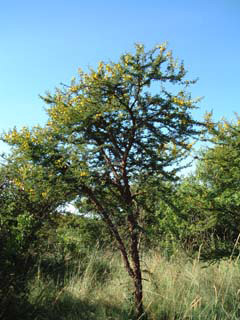
Red acacia (Acacia seyal; also known as Shittim wood or Shittim tree) is a thorny, 6-10 m (20-30 ft) high tree with a pale greenish or reddish bark. At the base of the 3-10 cm (1-4 in) feathery leaves there are two straight, light grey thorns. In var. fistula, whixh is more common on heavy clay soils, some of these thorns are swollen and house symbiotic ants. The blossoms are displayed round, bright yellow clusters approximately in 1.5 cm (0.5 in) diameter, growing to 7-20 cm (3-8 in) long.

It is distributed from Egypt to Kenya and west Senegal. In the Sahara, it often grows in damp valleys.

Ok so what’s special about it? It is the the most important supplier for gum arabic, a natural polysaccharide, that drips out of the cracks of the bark and solidifies.

So here’s the symbolism: arabic gum, the gluing element that solidifies. I like to think of me as a type of glue, the one who likes to glue together knowledge, and share it. I might never invent something completely new. I might give a new twist to the wheel, but it will be nevertheless a wheel…

So it is so simple as that!

Here’s a picture of Red Acacia, or Acacia Seyal:

Posted in Uncategorized | 1 Comment

A Twitbot Using OAUTH

The story line:

I am a late comer to Twitter. My first objective was to twit the latest posts in forums I administer. I am webmaster of a Muslim portal. The portal contains several forums. Stammy script from Paul Stammatiou with some simple modifications was my solution for automatically twitting latest posts from forums to Twitter.

I was idly sitting down happy with my code twitting latest forum posts in Twitter. I was announcing in the forums about Twitter services, and seemed to be happy ever after, until one morning looking around Twitter’s website  found out that basic authentication was scheduled to be fased out from August 16th, 2010.

When checking into the docs about new authentication based on OAUTH I became simply desperate. What? I need to install OAUTH library using PECL, and blah blah blah?  Day by day, I got more and more confused, until one afternoon, two days ago, I found out Abraham Williams ‘s library. I didn’t need to install Php-Devel, etc. Those that have are learning to install OAUTH with PECL, know what I am talking about… Then I discovered Abu Ashraf Masnun ‘s website with simple solutions. I am no PHP programmer, and I have little time, due to my professional life, so complicated solutions are not my favourite adoes. So here’s how I did it!

The solution:

Firstly and foremost you need access tokens ( a consumer key and a secret key). These are obtained in Twitter’s developpers page and at first go. I wil not dwelve into howto, as whoever is interested just needs to google to find out how to get these key tokens. With this process, your website’s folder, say twitbot, will have your due authorizations from Twitter to automatically post there with read/write permissions. Again I will not explain here how to do it. The process will provide you with total four keys: consumer key, consumer secret, access key and access secret.

Download Abraham’s latest files and upload twitteroauth folder into your website’s above mentioned twitbot folder and from where you obtained due read/write permissions from Twitter as again I wrote above.

Write a secrets.php file with following code:


<?php
$consumer_key = "OBTAINED FROM TWITTER";
$consumer_secret = "OBTAINED FROM TWITTERY";
$access_key = "OBTAINED FROM TWITTER";
$access_secret = "OBTAINED FROM TWITTER";
?>

Upload this file into twitteroauth folder in your website.

chmod 644 the whole folder.

Next download the zipped file from Stammatiou’s website.

Upload parse.php file into your twitbot folder. In my case I had to change the following in parse.php file (my forums are in portuguese language):


var $default_cp = 'ISO-8859-1';
var $cp = ' UTF-8';

$cp is UTF-8 because this is the default charset of Twitter. $default_cp is ISO-8859-1because of my forums charset.

Next write your index.php file as follows with edits as shown:

<?php
/*
RSS to Twitter v0.1
by paul stamatiou
of http://paulstamatiou.com
based on code from
http://morethanseven.net/posts/posting-to-twitter-using-php
mods and adaptation from Tayeb Habib https://redacacia.wordpress.com and http://myciw.org
*/
include('parse.php');
require_once('twitteroauth/twitteroauth.php');
require_once('twitteroauth/secrets.php');


$connection = new TwitterOAuth ($consumer_key ,$consumer_secret , $access_key , $access_secret );
$newpost=4;
while ($newpost>=0)
{
$feed = "YOUR RSS FEED LINK"; //the feed you want to micro-syndicate
$rss = new lastRSS;
if ($rs = $rss->get($feed)){
$title = $rs[items][$newpost][title];
$url = $rs[items][$newpost][link];
} else { die('Error: RSS file not found, dude.'); }
$tiny_url = file_get_contents("http://tinyurl.com/api-create.php?url=" . $url);
$parameters = array('status' => $title." ".$tiny_url);


$connection->post('statuses/update',$parameters);
$newpost--;
}
?>

As you will note, the code parses latest 5 posts and twits or retwits into Twitter. When retwiting Twitter recognises duplications and will not upload the twit. The twitter scripts are sufficiently clever to do.

You can manually run index.php or automatize using cron to run it say every so many minutes.

My twitbot‘s results can be viewd at:

http://www.twitter.com/myciwportal

I hope this post will help those are at this moment seeking OAUTH Twitter solutions, as I was two days ago, and solve the OAUTH puzzle.

My special thanks are due to Stammatiou (belately for my first code and aptation of latest code), Abraham and Masnun.

—————
An addenda August 21st, 2010:

There has an issue with my script since August 15th. It was not updating.

I wrote in Masnun’s blog about this issue. I thought that the fact my script not updating had to do with Abraham’s library, or there were new Twitter arrangements, since Twitter was officially bringing down Basic authentication.

On visiting Masnun’s blog I read Abraham’s post in response to Paolo. I added to my script the following suggestion from Abraham to Paulo:

print_r($connection->post(‘statuses/update’, array(‘new status text here’));

and got the following error:

stdClass Object ( [request] => /1/statuses/update.json [error] => Invalid / used nonce )

I searched information on nonce error. and I learnt that there may be problems with timestamp.

Hence I ran the command in my server:

date

and in fact my server was 13 minutes behind.

Now twitter allows up to 5 minutes time difference, no more. So I ran the following command:

ntpdate pool.ntp.org

More on ntp servers at:

http://support.ntp.org/bin/view/Servers/WebHome

My server was now in sync with ntp time servers and most likely with twitter. I ran my script and there at twitter account my latest feeds from my rss feeder were being diaplaed.

I have now established cron in my server to run every night and to put it into sync with ntp pool of servers.

Servers do lag behind in time. That’s what was was happening to my server.

May be this infomation may be useful to those users of my script and twitter account not being updated. I suggesting changing in the script the following code:

$connection->post(‘statuses/update’,$parameters);

with:

print_r ($connection->post(‘statuses/update’,$parameters));

So every feed updating will be shown on your terminal screen and respective results.

Posted in Information Technolody, Internet of Things | Tagged , , , , , , , , , , | 26 Comments