OpenWRT – Rootfs & Swap on USB Storage

Introduction

The chances are that you have a router with a USB port, just like I have my TP-LINK TL-MR3420 router. It is likely that with more intense usage of your router, you will need more disk space. This can be achieved by connecting any USB storage device into the USB port of the router, such as pendrive, external HDD, memory card reader, cell phone, etc.. Unlike a Linux Desktop, OpenWRT is starved of disk space in the extreme. One way to overcome limitations and gain some “Mega” space is to remove installed kernel modules. This may not be at all very convenient, In general, for router with USB port, OpenWRT includes kmod-usb2, a pre-installed  basic module support for USB, which can be expanded to allow for external storage.

Basic Equipment Requirements

– TP-LINK TL-MR3420 Router* with OpenWRT Linux distribution for embedded devices and stable release of  Attitude Adjustment.

– USB Hub* with power supply

– Hard disk drive** with USB connection

* I have a 4-port USB hub  CN-050 v.1.002 from SITECOM with external power supply (cost 16,55€)

** In my case, I have an old 2,5″ 150GB SATA HD (bought long ago, I don´t remember how much probably 75,00€) that I decided to put into an external BlueRay USB box  (cost 13,99€).

Preparing the SATA HDD

Our SATA HDD needs to be partitioned and formatted to be recognised by OpenWRT.

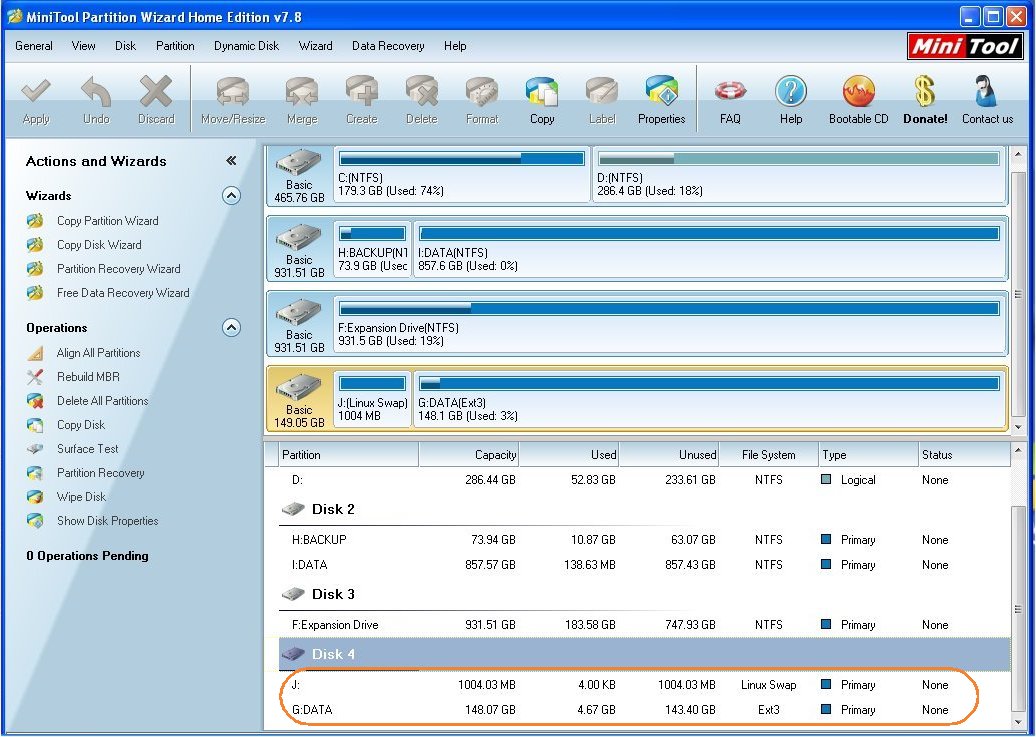
We use MiniTool Partition Wizard Home Edition. Besides being free it is easy to use. Hook up your SATA HDD to your PC.

We partition our SATA HDD as follows:

Partition 1 with 1GB for LinuxSwap and Partition 2 for Ext4 with remainder space of our SATA HDD.

mr3420_1

Setup USB, Swap and ExtRoot

Make sure you have Internet connection. In my case I have my router with static IP address  192.168.1.1 with main gateway pointing to address 192.168.1.254 belonging to my ADSL router THOMSON TG585i V.7, with Internet and custom DNS server pointing to Google´s Open DNS address 8.8.4.4.

STEP 1: Next start LuCI in your favorite browser by pointing the URL to your router´s static IP, in my case 192.168.1.1

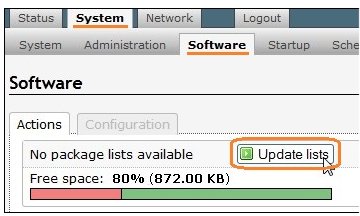
Update your router´s packages in System -> Software and click Update listsmr3420_1aActions will be shown of downloading process

mr3420_1b

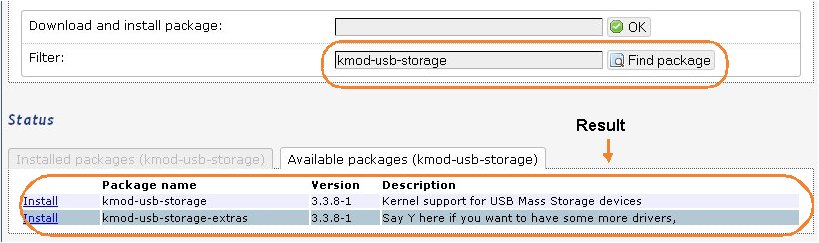
STEP 2: We next install kmod-ub-storage packages. In Filter field write kmod-usb-storage  and click onto Find package. The result will be shown below as shown.

mr3420_3

Install kmod-usb-storage-extras by clicking onto Install link on the left side of found package. A popup window will ask you to confirm if you want to intall

mr3420_3aClick OK. The results will be shown above as you can see next

mr3420_3b

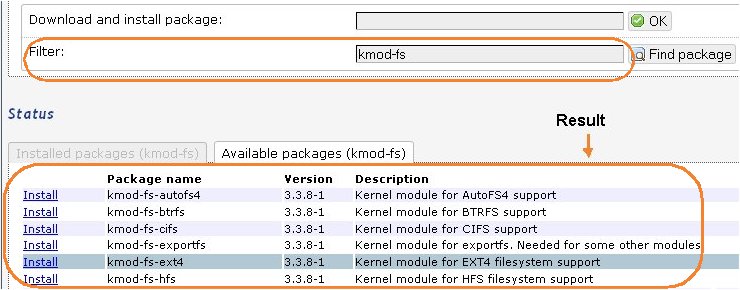
STEP 3: We will next install filesystem packages. First we find the packages by writing in Filter field kmod-fs

mr3420_4

We will install kmod-fs-ext4 package by clicking Install link on the left of found package.

Again a popup window will ask us if we want to install kmod-fs-ext4 package and we will click OK button. Results of installations of packages will be shown as previously.

STEP 4: We will finally install block packages. First we find the packages by writing in Filter field mount-

mr3420_5

We will install block-mount package by clicking Install link on the left of found package.

Again a popup window will ask us if we want to install block-mount package and we will click OK button. Results of installations of packages will be shown as previously.
mr3420_5a

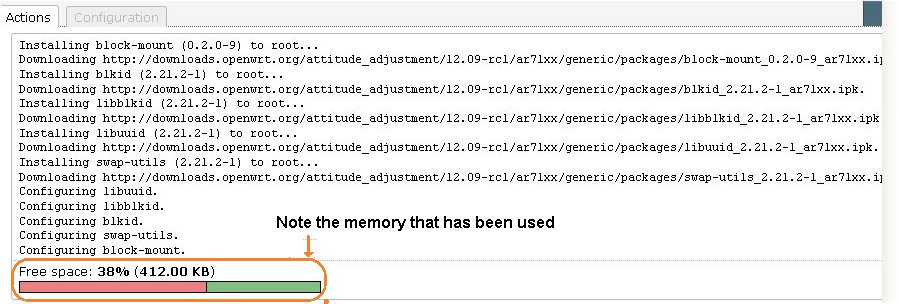
It is interesting to note that all installations have reduced the available in my case to 38%.

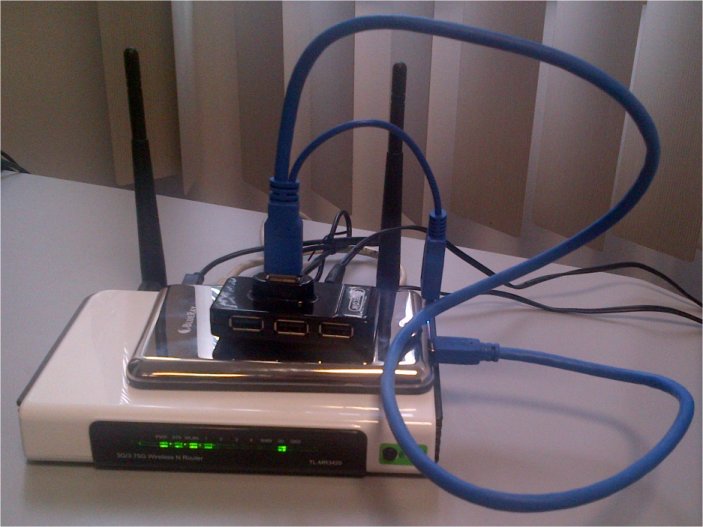
STEP 5: We will plugin the Hub now where we have connected the SATA HDD. The following image shows my setup

mr3420_foto

We next reboot the router in System -> Reboot tab

mr3420_6

STEP 6: After reboot launch PuTTy and perform the shown commands

mr3420_67jpg

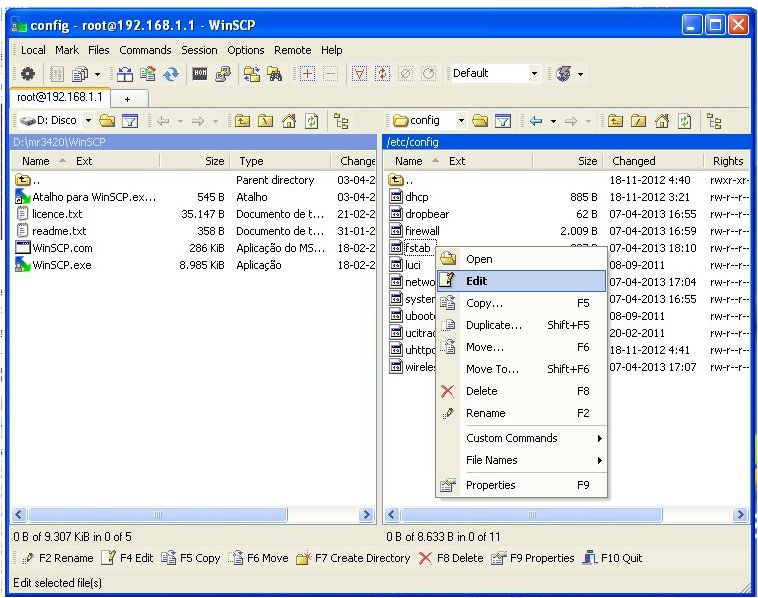
STEP 7: After reboot, launch WinSCP (I have vi that is included in OpenWT). Go to ” /etc/config ” folder and locate and edit the file fstab

mr3420_7

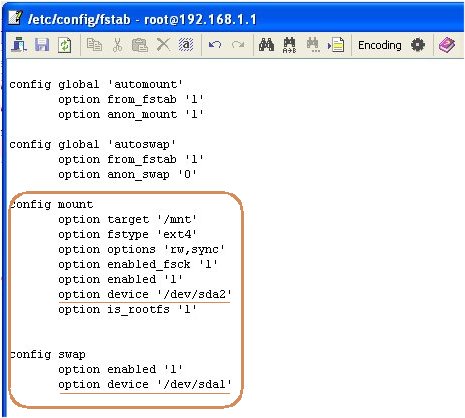
Edit fstab as shown below taking note specially that /dev/sda1 is partition 1 (LinuxSwap)  and /dev/sda2 is partition 2 (Ext4 for Data) and do slight modifications as shown below

mr3420_8

Back to LuCI perform reboot again

mr3420_6

After rebooting go to System -> Software tab and Voila!

mr3420_9

A while ago we saw we had 38% of memory now we have 100% and much more memory! Note that there are no package lists. We will do something about this  later.

STEP 8: Let us now check what is going checking mount points in System -> Mount Points tab and in my case at least, swap was not enabled which we will do by ticking Enabled as shown

mr3420_10

We also note that mount point /overlay is correctly mounted in /dev/sda2.

We will now enable fstab to mount the partitions. In LuCI System -> Startup tabmr3420_fstab_enabled

Do next reboot again

mr3420_6

STEP 9: As a final act of confirmation launch PuTTy and perform the commands as shown df -k and next free

mr3420_11

STEP 10: It seems all is fine. Now we will update the package lists like in STEP 1 and do something final about spin of HDD.

Back in LuCI in System -> Software tab perform Actions of searching with keyword luci in Filter field

mr3420_12

And choose to Install luci-app-hd-idle, a utility to spin down the hard drive. A popup window will ask you if you want to install luci-app-hd-idle and you will press OK button and you will see that the package will be installed

mr3420_13

A new tab will be added called Services. Choose Services

mr3420_14

Enable hd-idle as shown and Save & Apply

We have concluded our task of USB, HDD, Rootfs and Swap. By installing hd-idle we have proved that the HDD has substituted the internal limited memory of our router.

Acknowledgements

A special thank you is due to K. L. Seet for excellent tutorial found at that website. Most of this post is based on that tutorial.

Posted in Electronic Projects, Information Technolody | Tagged , , , , , , , , | 45 Comments

This blog has now its own domain name RedAcacia.me

RedAcacia.wordpress.com is now RedAcacia.me!

This blog had 24,000 views in 2012.

In 2012, there were 11 new posts, growing the total archive of this blog to 27 posts.

The busiest day of the year was September 13th 2012 with 141 views. The most popular post that day was Fixing: Fatal Error Call To Undefined Function Json_decode.

Where did they come from?  The visits cam from 147 countries in all!
Most visitors came from The United States. India and Portugal were not far behind.

RedAcacia has not deviated from its main aim of “Just tech-oriented projects and sharing them!

RedAcacia values visitors and I have always tried to respond quickly to any queries or comments. I am also a keen learner.

RedAcacia shows now with its own domain name commitment to continue sharing knowledge in tech-matters!

A big thank you to all visitors and commentators, and a special gratitude to WordPress team in providing us all with such a wonderful facilty on the Web!

Posted in Uncategorized | Leave a comment

Debrick your TL-MR3420 router with a serial TTL cable

Introduction

When upgrading a router such as TP-Link´s  MR3420, if one does not take adequate measures, one risks to brick it. That is exactly what I did with my TL-MR3420 v1 router. The only way to debrick this router is through a serial TTL cable.  I will show here how to do it.

Requirements

You need to know a bit about soldering, and have a bit of cabling skills and adequate tools such as a crimping tool.

Preparation of the serial TTL cable

You will need a serial TTL cable. This is not the same as ordinary RS232 cable used in PCs such as USB->RS232 cable .

If you dont own a serial TTL cable, it is easy to make one. You need to buy a cheap Data cable DKU-5 or CA-42 (I bought a DKU-5 cable from a local Indian shop for 6,00€)

dku5_2

DKU-5 cable is used for data connection in old Nokia phones. Cut the cable at extreme end next to Nokia connector as shown, and expose the wires:

other_end_cable

In my case the DKU-5 cable has 3 wires. You need to know which wire corresponds to what i.e. Tx, Rx and Ground required for TTL connections on the router.

It is quite easy! You just need to use a multimeter, and check continuity on the NOKIA connector, that is which wire corresponds to what for Tx, Rx and Ground:

dku-5

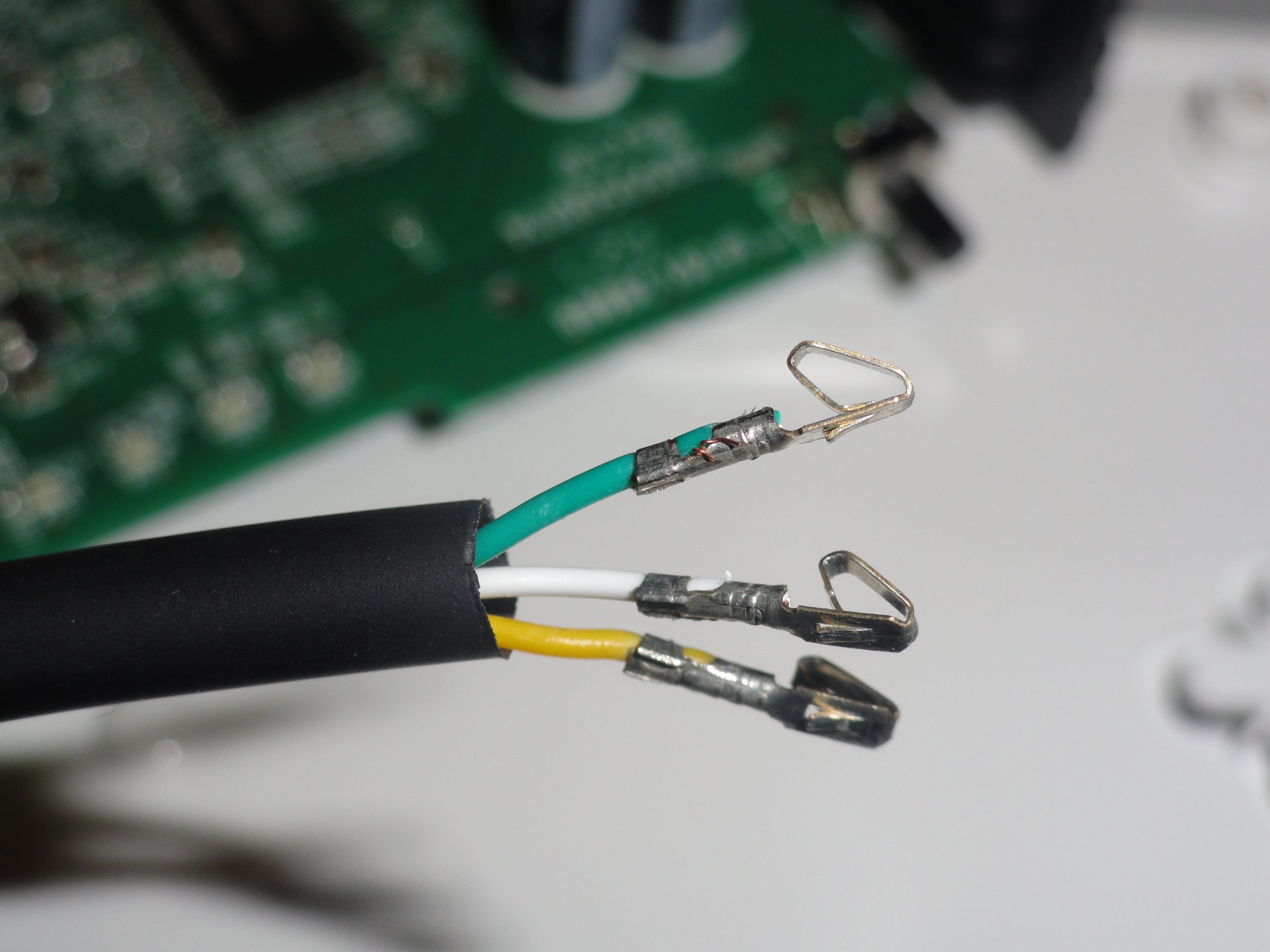
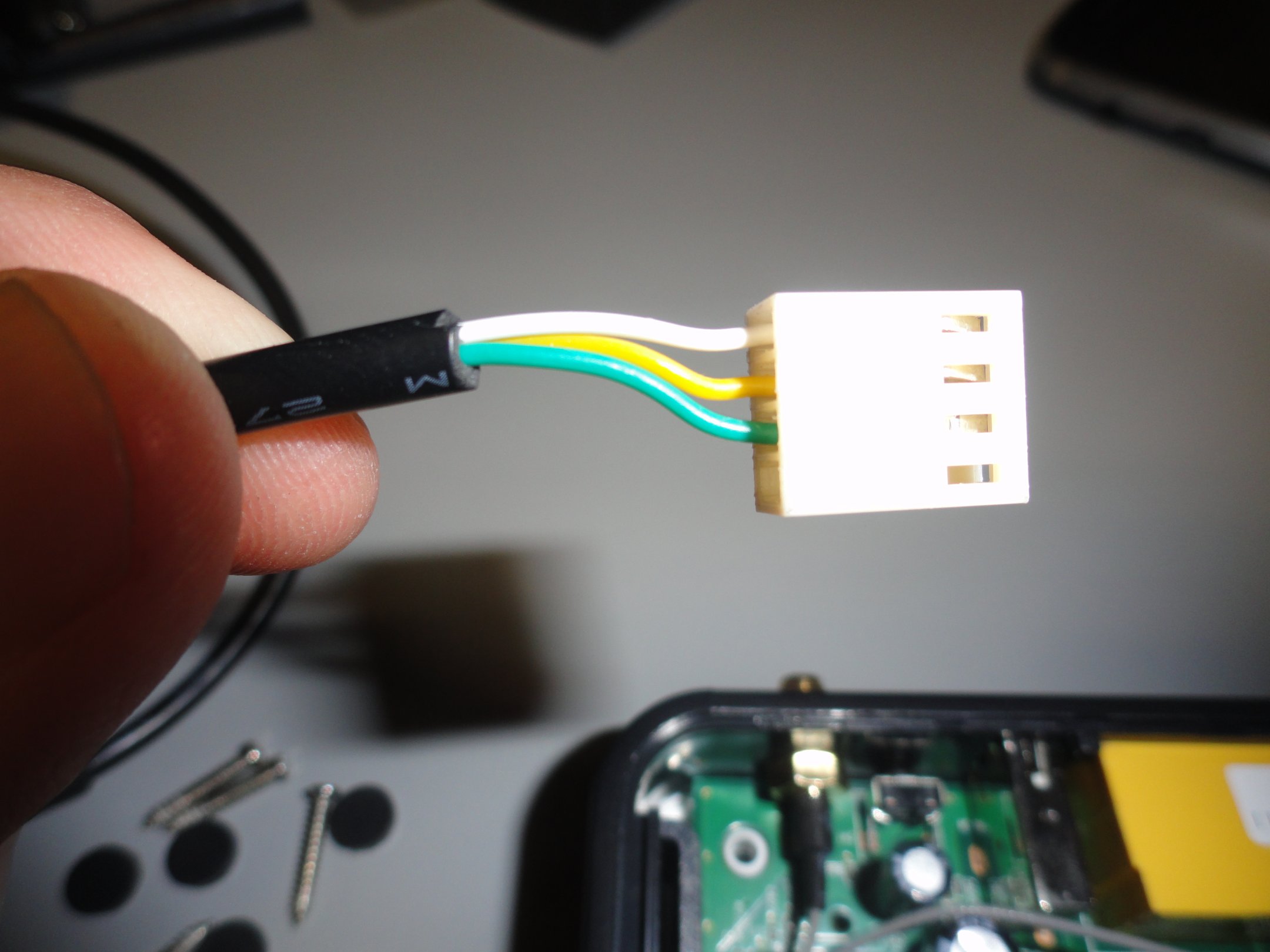
In my case white wire corresponds to Tx, yellow corresponds to Rx and green corresponds to Ground. I crimped  the wires at cable end with Molex crimps as shown (we are going to use Molex connectors):

crimping1

If you want to learn to crimp, there are nice Youtube videos showing how to do it.

Before finishing touches with the serial TTL cable, we need to go forward and prepare the router for programming with this cable.

Opening and preparing the router

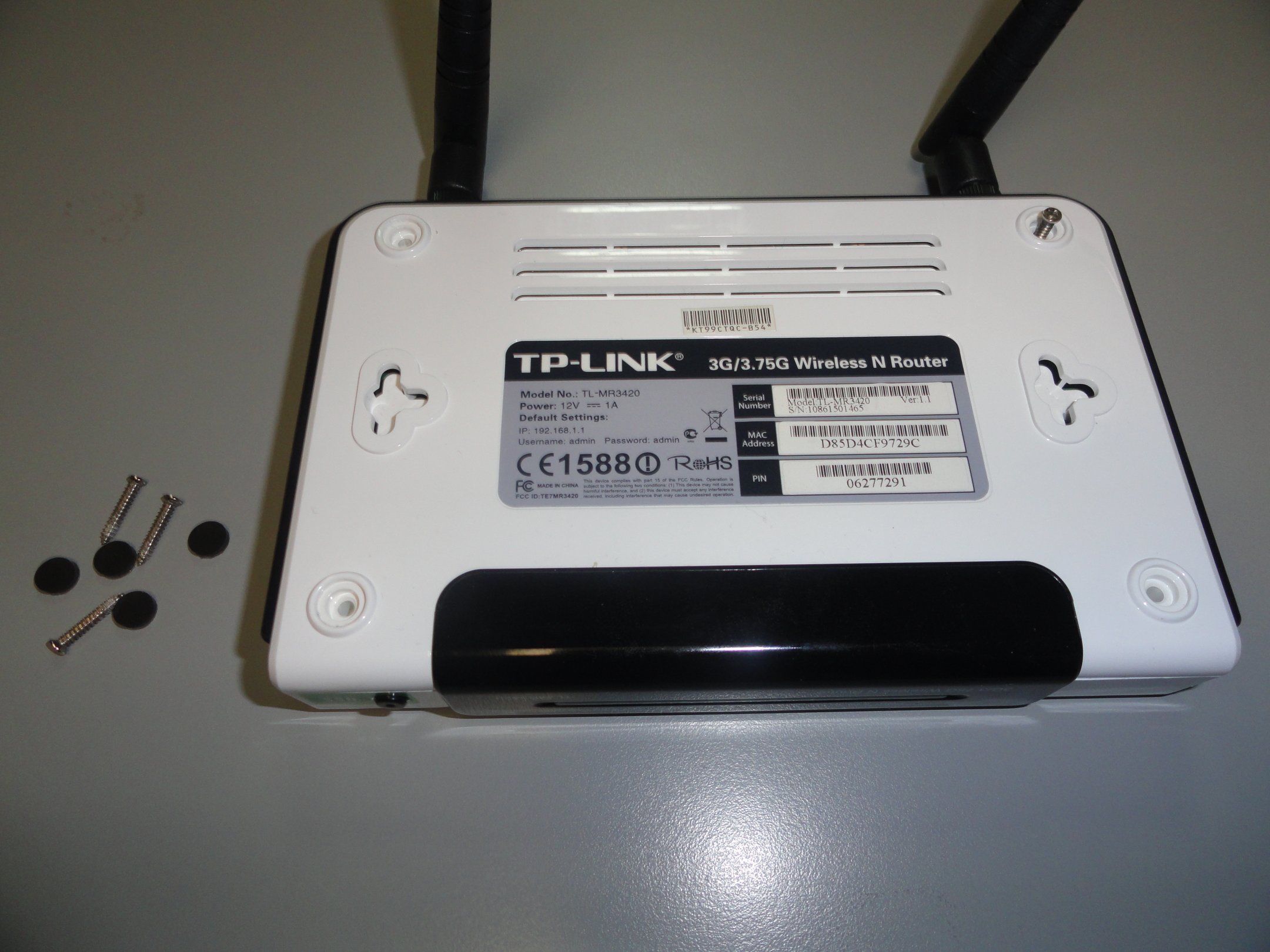
On the bottom side of the router, there are four round rubber pads that you will need to remove , and below these you will find four screws that you have to unscrew in order to open the router:

router_open1

Avoid static electricity as it can cause real damage to your router! The easiest way to dissipate static electricity is to use an antistatic wrist strap, which connects to your local AC ground.

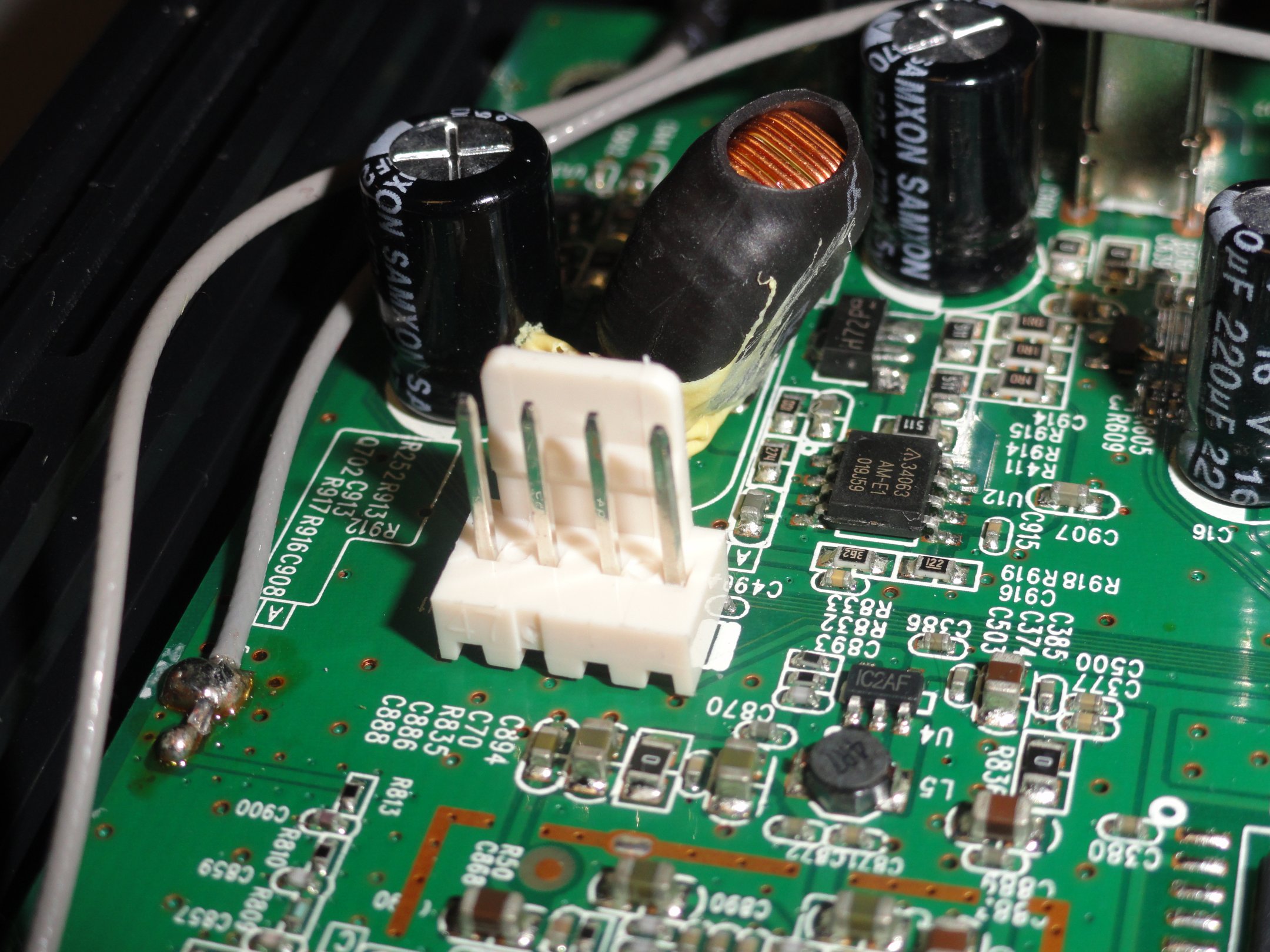
Open carefully the router taking out also the front end with reflectors of the LEDs, in order to be able to remove the router´s PCB. All of following images refer to TL-MR3420 v1 router. Identify where you will connect the cable you just prepared (on the PCB from left to right: Tx, Rx, Ground, Vcc):

identify_connection

The following image shows the pinout exactly as on the router’s PCB:

pinout

Remove the solder covering the holes with desoldering pump in order to mount the male Molex connector. You will need to add a bit of extra solder and flux to remove the solder in these holes. For learning to solder, and to remove the solder with desoldering pump there are some nice Youtube videos on the Web showing how to do it.

Connect the male Molex connector (I have used a 4 pin connector to facilitate next connections, you can read about below in this tutorial). So here is an image of the connector already soldered on the router´s PCB:

molex_connector_pcb

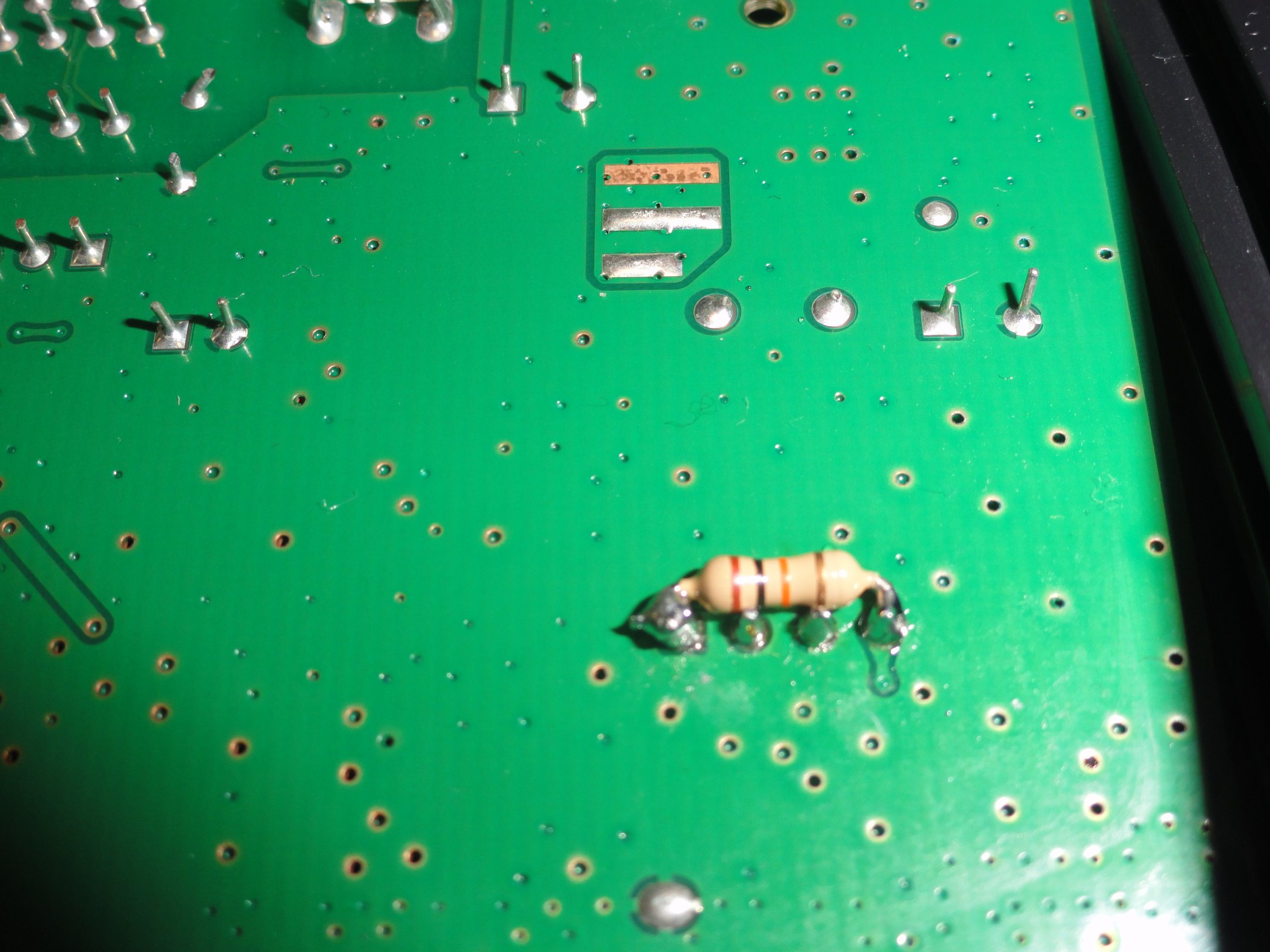
To get the serial connection work reliably, you have to connect a 10k ohms pullup resistor between the Tx and the Vcc on the PCB. This is because the Tx pin is connected to a voltage divider (2×5.6k) and a capacitor is put between the real pin and the Tx connector. So turn over the router´s PCB, and solder a 10K ohms resistor as shown using as support the terminations of the Molex male connector we have soldered before:

solder_resistor

Now we are ready to finish up the cable we have crimped before as shown:

molex_connector_pcb1

Note: A special thank you is due to Filipe Avelar, external salesperson in ALIATRON (my company) that soldered for me the resistor, and crimped the TTL cable terminations.

We are now ready to debrick the router!

Debricking the router

Make sure the router is not powered. Connect the TTL cable to the router as shown:

connected_cable_on_router

We will now follow the procedure advised by the polish language site eko.one.pl. It is a good idea to create a folder in your PC to. where you will download some of the files you will require. My folder is called “modem”.  My PC’s OS is Windows XP.

Download:

1) firmware openwrt-ar71xx-generic-tl-mr3420-v1-squashfs-factory.bin from Openwrt site to your newly created folder where you will have the whole project.

2) tftp for Windows from http://tftpd32.jounin.net/ to your folder in a subdirectory called tftp.

Paste into tftp subdirectory the firmware you downloaded, and rename it  code.bin for sake of easy identification.

Connect the serial TTL cable to your PC (you will have already connected to your router as shown above in this tutorial). The serial TTL cable  will be recognised by your PC. If not, you will need to install adequate drivers from Web. My DKU-5 cable came with a CD containing drivers.

If the cable is recognised, check in your PCs Control Pannel -> System -> Hardware ->  Device Managemnt -> Ports (COM and LPT) .

You will see thereProlific USB-to-Serial Comm Port (COMx). x will be the port number  (in my case it is COM5).

Now start your PC´s Hyper Terminal (or use Putty). For Hyper Terminal give a name to your connection say “test”:

start_ht

Configure Properties to 115200 8N1.

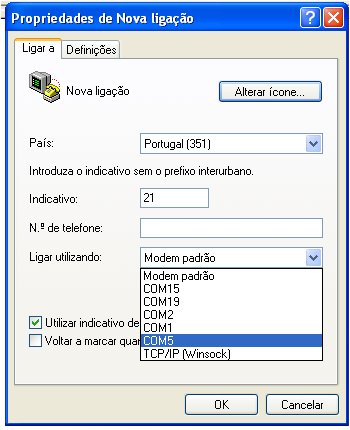
In Hyper Terminal the configuration is found in File -> Properties -> Configure…-> Connect Using (my case COM5):

cable_configuration

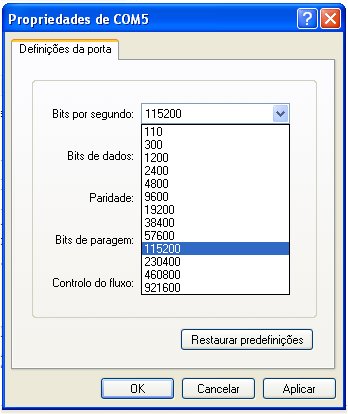
After this selection, press Configure button and now select 115200 baud rate:

cable_configuration1

And now press the Apply button and next OK button.

And next on first screen press OK button. Leave the Hyper Terminal as it is, as it is now duly configured (do not close it!).

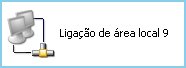
Change your PCs IP to 192.168.1.27. Connect the CAT5  network cable between your PC and port 1 of your router. Make sure you disable your other network connections in your PC, except for your Local Area Network that you have just connected to the router. Also remove temporarily your PC´s firewall. Your network is now shown without firewall’s lock sign:

cable_configuration2

We will now start tftp we downloaded before. Tftp will show your PC’s IP you have just configured:

tfpt1

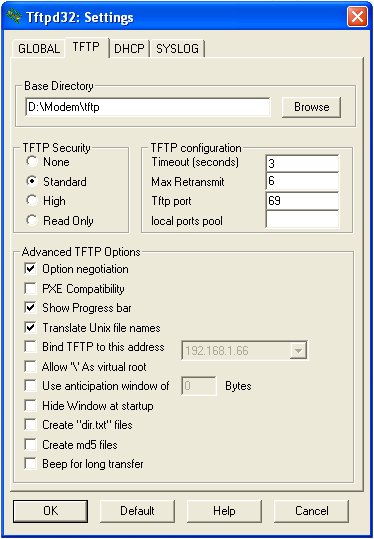
We need to tell tftp where the code.bin firmware is. We do this by pressing Settings button and pointing the Base Directory to the folder containing code.bin:

tfpt2Press OK. Now look at your Hyper Terminal´s screen. Power your router.

Your Hyper Terminal screen will show “Autoboot in 1…“, when quickly type tpl with your keyboard. You will hopefully see the following prompt, or similar:

start

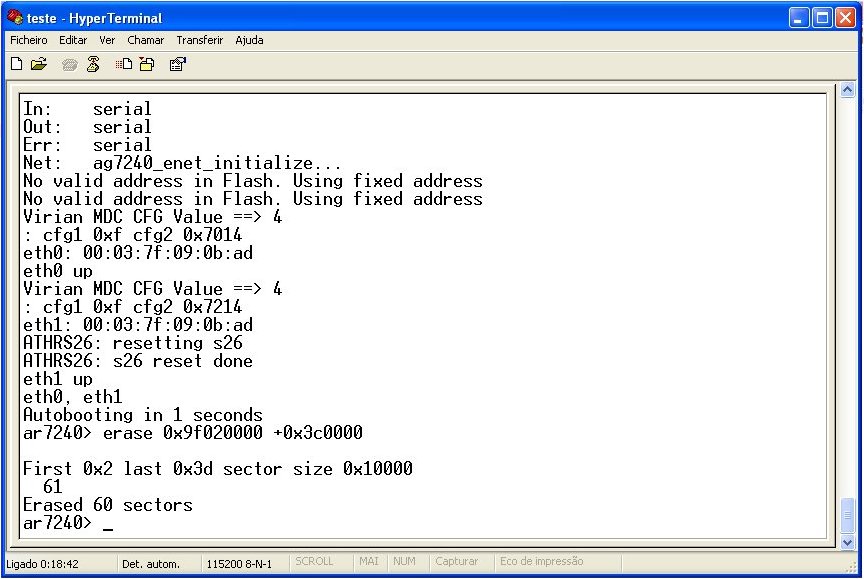
We are now ready to type:  erase 0x9f020000 +0x3c0000 

And press ENTER key. It wll result in erasing an area of the memory of the router:

programming1

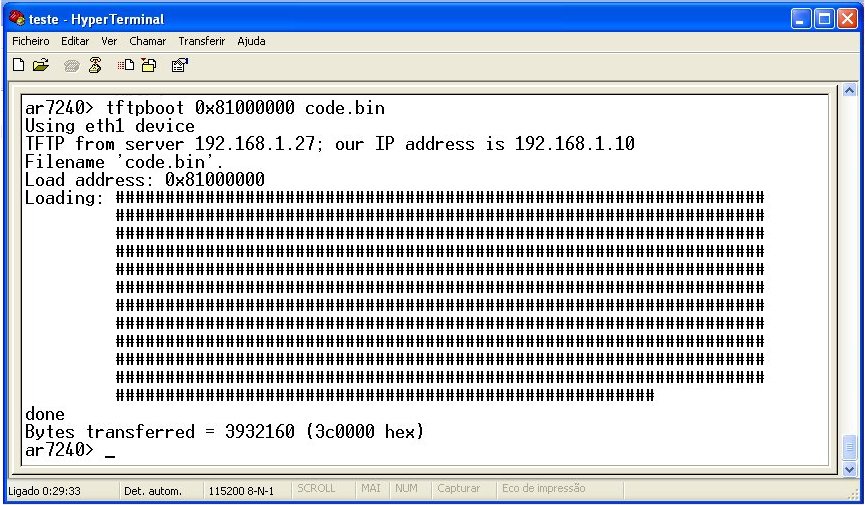
We will next type the following: tftpboot 0x81000000 code.bin

And press ENTER key. The firmware will be uploaded:

programming2

tftp will show the code.bin being uploaded:

tfpt3

We will next type: cp.b 0x81000000 0x9f020000 0x3c0000

And press ENTER key. And at next prompt type: bootm 0x9f020000

The router wil now reboot and it is no more bricked!

You can now check if your router is debricked by writing in your browser the URL http://192.168.1.1.  your login screen to the router´s interface will show:

Luci_int01 (1)

Conclusions

If one has bricked his TL-MR3420 router, the solution lies in debricking with a serial TTL cable.  I have shown here that with little bit of soldering, and mechanical (crimping) skills and necessary software one can debrick TL-MR3420 router. The approach of debricking a router may be similar with other brands of routers.

Posted in Information Technolody | Tagged , , , , , , | 70 Comments

2012 in Review

The WordPress.com stats helper prepared a 2012 annual report for this blog. A big thank you to all visitors and among you that wrote comments, as well as WordPress team for running this wonderful space on the Web.

Here’s an excerpt:

4,329 films were submitted to the 2012 Cannes Film Festival. This blog had 24,000 views in 2012. If each view were a film, this blog would power 6 Film Festivals

Click here to see the complete report.

Posted in Uncategorized | Leave a comment

Android Basic Gestures of Swipe to Control a Robot

Introduction

Basic gesture of swipe to control movements of a robot can be quite interesting, and may add intuitive interactive dimension to electronic projects.

I have published in this blog several tutorials on 8051-based robot controlled with bluetooth-enabled cell phone. Also most recently I have published a tutorial for Android phone using button images on device’s touchscreen.

Android being open-source, attracts a large following, and hence there are many different ready-made solutions. With a little bit of coding, and imagination, one can design different projects using solutions that are already available, or modifying or improvising on them.

Required equipment

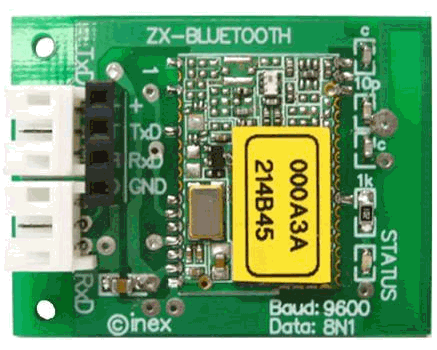
A 8051 robot “Robo-51” (could be a robot with any other micrcontroller) with serial bluetooth ZX-Bluetooth module, running a firmware for bluetooth control, and an account with App Inventor.

Robo-51

Inex´s Robo-51

Inex´s bluetooth module “ZX-Bluetooth”

App Inventor Code

Our code is based on two codes BennyBlue and Swype routine both made with App Inventor .

To be able to control the robot you will need to download the source code file Bluemote2_0.zip kept at Bitbucket, an unlimited free private repositories’ site. If you already have an App Inventor folder, you can download the source code by scanning the following QR barcode:

All you need is your Android’s camera and a barcode scanning application. You may use Barcode Scanner app from ZXing Team. It’s available as a free download from the Android Market and works with all versions of Android.

If you are absolute beginner with App Inventor, the excellent resources and tutorials found at MIT’s App Inventor site are very good and easy to follow.

The control program

The Android application controls Robo-51 from Inex, with the following bluetooth send commands:

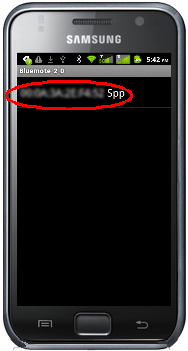
Key letter “d” results in forward movement of the robot, “a” in backward, “c” in turning leftward, “b” in turning rightward and “s” in stopping.  The following icon (inside the red circle) shows when the apk has been installed (after compiling in App Inventor, and downloading into your Android phone):

Android screen of Bluemote 2.0 app´s icon

Before running the application, you will need to pair the serial device on Robo-51 with your Android’s bluetooth. Next, when you run the app you will need to tell it which paired device will it talk to:

Select the  bluetooth device

Press the Select Device button to select the paired bluetooth device you have already paired with your Android phone:

The paired device is shown

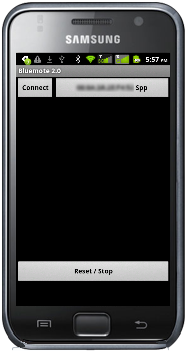
On clicking the device our first screen will come up with MAC address of the bluetooth device:

On clicking Connect, you will hear if everything is OK “I’m robo-51… I’m at your command!”.  Connect button will change to Disconnect

You can control the robot with gestures of swipe with the finger to the left, or to the right, or forward (up finer swipe gesture) and backward (with down finger swipe gesture) , and you will hear in your Android phone voice of corresponding “forward”, “backward”, “turning left” etc. and the robot will move accordingly leftward, rightward, forward and backward. The Reset/Stop button will stop the robot.

After you have played with the control of the robot, you can disconnect by pressing Disconnect button on top right of Android screen. Clicking the menu button of your phone you can close the app.

VIDEO Demo

Conclusion

This project adds a new feature into existing Robo-51 projects. The main objective of this actual project was to achieve, with little work, similar results to those obtained with Java-based Nokia N97 and Blackberry Bold 9700. I can now tick as successful this project on basic gestures of swipe for Android.

Posted in Mobile Apps, Robotic Projects | Tagged , , , , , , , , , , | 5 Comments

Write a Drawing App “myArtwork” for Blackberry with Social Network Sharing Capability

Introduction:

With Mobile Processingg one can write J2ME apps that work in Blackberry phones. Sometime ago, I compiled a simple code that I found on the web that without any changes works perfectly in my Blackberry Bold 9900. The compiled app utilises the touchscreen on my phone as a method for drawing images. My grandchild loves to draw using this app, but his artworks were not being saved or shared until recently, when I added an app to my Blackberry that allows me to save the drawings, and to share them.

Objectives:

Write code for a drawing app named myArtwork for Blackberry smartphones with touchscreen, such as Blackberry Bold 9900, and add Social Networking sharing capability. The resulting app must have basic look and feel of a professional Blackberry app.

Requirements:

Blackberry Bold 9900, or other Blackberry smartphone with touchscreen
Mobile Processing IDE installed in PC with Java SDK and Wireless Tool Kit (WTK)
Blackberry Desktop Software

Installing Mobile Processing IDE and “Hello World” app

You need to Mobile Processing, Windows Version with Java and WTK download Mobile Processing  for building Java mobile phone applications. Note the location of the installation. In our case we unzipped into root of our C:\ drive

There is no installation just run Mobile Processing by double clicking the icon in your PCs folder:

There will be an error warning when checking for updates. The Mobile Processing project has been stale for a while, so there are no updates:

Click Ok.

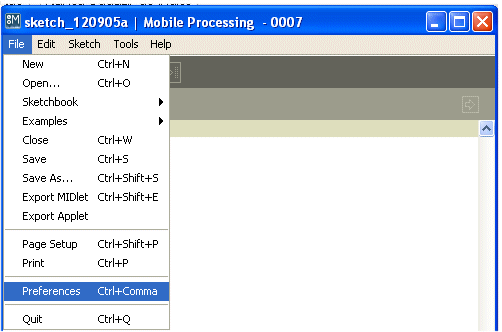
Choose Preferences from the main dropdown menu:

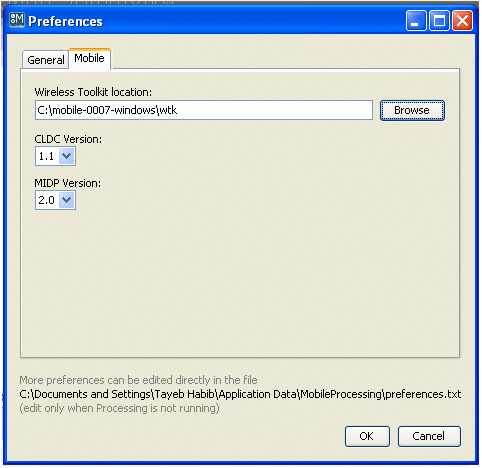
In the Preferences dialog box, go to the Mobile tab, and enter the location of the WTK:

Choose CLDC version 1.1 and MIDP version 2.0. Click Ok.

We are now ready to write our first app “Hello World”. Cut and paste or write the following code in the sketch workspace of Mobile Processing:

PFont font;

  void setup()
  {
    font = loadFont("SansSerif.bold-24.mvlw"); 
    textFont(font);
  }

  void draw()
  {
    text("Hello World",10,25);
  }

Save the project with name Hello with dropdown main menu File -> Save as.

NOTE: All projects are saved in your PC’s My documents -> MobileProcessing.

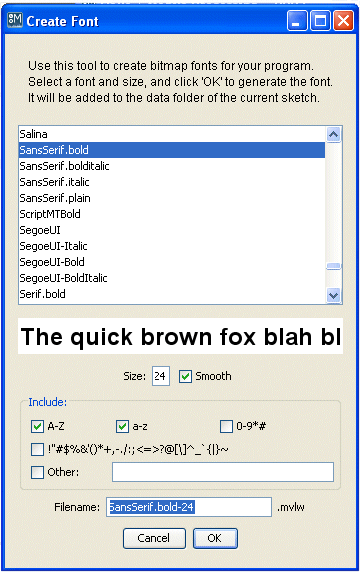
Now, before simulating, we need to load the font into the project directory. Do Tools -> Create Font. The following configuration window will open:

We will choose SansSerif.bold-24.mvlw and include A-Z and a-z characters. If we do not do this procedure our emulator will throw Java exception error. The emulator does not how to display fonts.

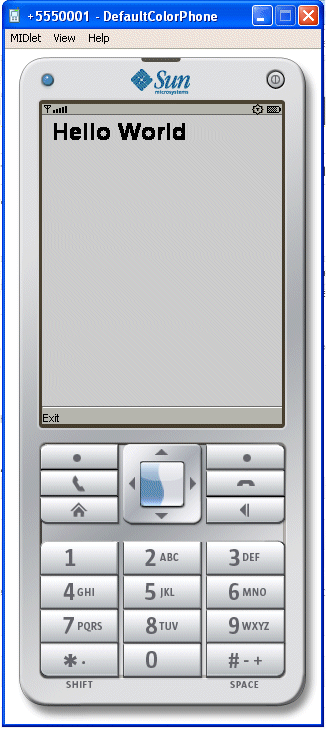
We will now simulate this first application. In the dropdown main menu run the simulation with Sketch -> Build and Run. The default color emulator will open:

We will click the right button Launch in the emulator. The result will be as follows:

Check the folder in your PC in My documents -> Mobile Processing -> Hello and you will see the directories that have been created:

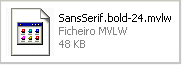
Open the data folder, and you will see our font file:

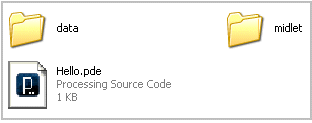
Now open the MIDlet folder, and you will see Hello.jad, Hello.jar and Hello.java files:

The files that Blackberry needs are Hello.jad and Hello.jar. Hello.java contains Java source code. We will not install these files in our Blackberry, and proceed with installing our drawing app “myArtwork“.

In the main dropdown menu choose File -> New and cut and paste the following code, or write it in  Mobile Processing sketch workspace:

int x;
int y;
int lastX;
int lastY;
boolean screenTouch;

void setup() {
softkey("Wipe");

x = width / 2;
y = height / 2;

framerate(15);
background(0);
stroke(255);
fill(0);
stroke(0);
strokeWeight(3);
colorMode(HSB);
}

void draw() {
if(screenTouch){

lastX = x;
lastY = y;
fill(random(0,255), 255, 255);
triangle(x + random(-20, +20), y + random(-20, +20),
x + random(-20, +20), y + random(-20, +20),
x + random(-20, +20), y + random(-20, +20));

}
}

void pointerDragged(){

x=pointerX;
y=pointerY;
redraw();
}

void pointerPressed(){
x = pointerX;
y = pointerY;
lastX = x;
lastY = y;
screenTouch = true;
}

void pointerReleased(){
screenTouch = false;
}

void softkeyPressed(String label) {
if (label.equals("Wipe")) {
background(0);
}
}

You will now save the project with the name myArtwork with  File->Save As in the main dropdown menu.

Before proceeding we will create an Icon for our App. It needs to be 62×62 pixels.  You can download here an icon we have designed, together with pde file of above code. The file is hosted by BitbucketBitbucket that offers unlimited public and private repositories and it is free for small teams. In your PC’s My Documents -> MobileProcessing ->myArtwork folder create a data folder and paste this icon image file icon.png into it.

Export as MIDlet with File-> Export MIDlet:

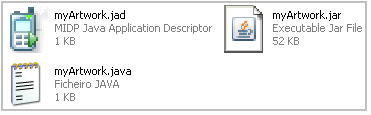
The MIDlet will be created and your PC´s MIDlet folder will open automatically to show myArtwork.jad, myArtwork.jar and myArtwork.java files:

Note: If you care to check myArtwork folder you will also see a new folder proguard. ProGuard is included in Mobile Processing to make the apps smaller and more efficient jar files. We will not use the jar file in this folder.

We are now ready to copy myArtwrok.jad and myArtwork.jar into the Blackberry.

After connecting your Blackberry to the PC with USB cable run Blackberry Desktop software and choose Files:

Click the Start button. You will see the next screen:

In your PCs folder MIDlet folder select myArtwork.jad and myArtwork.jar files:

And with right click of your mouse button Copy these files, and paste them into the Blackberry Desktop folder you have just opened:

Both files will be now in your Blackberry phone’s documents folder.

NOTE: If you are too lazy to write code you can  install the jad file found here into your Blackberry as shown. Note the jad and jar files are hosted at Bitbucket, a free and unlimited public and private repositories hosting site. The jad file will download from Bitbucket the required jar file (provided your Blackberry is connected to Internet) and install it following same procedures as shown below.

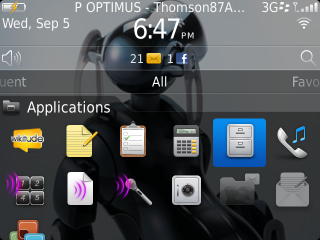
Now disconnect the USB cable between your Blackberry and your PC. In your Blackberry’s go to All group of folders and choose the Applications folder:

Open the folder, and select Files folder:

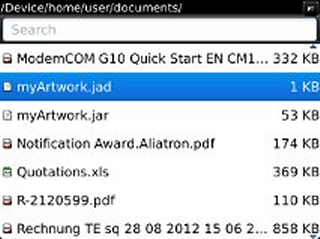
Open the Files folder and navigate to the documents folder. In my Blackberry I found it in File Folders -> Device -> home -> user. In documents folder within user folder, you will find myArtwork.jad and myArtwork.jar  (in case you have not downloaded the jad file as mentioned above in which case jar file will be downloaded from Web). Select myArtwork.jad:

Click myArtwork.jad and you will seee the following screen:

Click Download button and our app will start to be installed. You will get next the following warning window:

Normally you would press button No, or at least you ought to do so. We will click Yes button, and proceed with the installation. Eventually without any errors, you will get the following reassuring pop up window in your Blackberry:

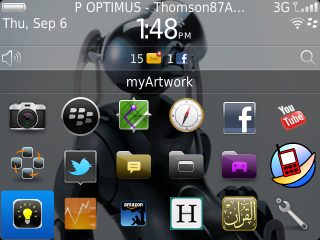
You can Run immediately the app. But we will wait, and check first our All group of folders to see what appears there. You will see reassuringly see myArtwork icon:

We are now ready to test our app myArtwork for Blackberry.

Testing  our App

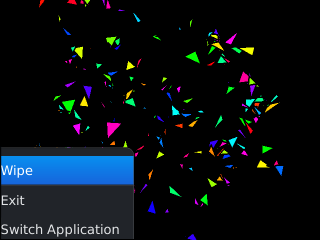
Click myArtwork icon and a black background empty screen will be shown in your Blackberry phone:

Touch the screen with your finger, and draw something similar to the following:

You can Wipe this drawing pressing the Menu button in your Blackberry:

You will see the option to Wipe or Exit:

If you use Wipe option the screen will be cleared. This is all that this code does. But, we will not stop here, and we will add to our app saving and sharing capabilities.

Blackberry App World offers a free software that does exactly what we want and integrates into other apps. It is called Screen Grabber. It is free, no watermark , no ads, courtesy of JaredCo.  This is a totally flexible screen capture app that lets you share your Blackberry screenshots with anyone. It is simple and useful. It has BBM, SMS, Email, Twitter and Facebook integration. It also creates in your Blackberry’s Media/Pictures folder, a new  folder called Screen_Grabs where the screenshots you have chosen  to share will be saved.

Install Jaredco‘s Screen Grabber in your Blackberry. After installing Screen Grabber and restarting your Blackberry, you will see in your Balckberry’s All group folder the Screen Grabber icon:

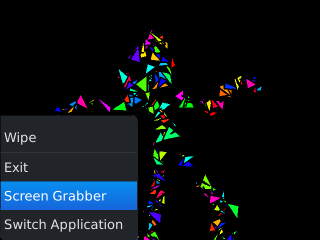
Now if you Run our app myArtwork, you will see the option to capture the screen if you click the Menu button in your Blackberry:

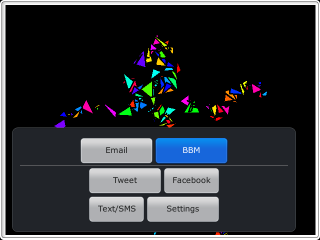
Click Screen Grabber and the following option will be opened:

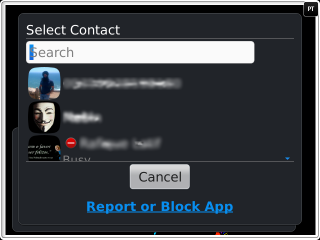
For testing purpose, we will click BBM button  and the following options will be shown:

We select a contact, and the following will be shown:

You can add a comment and Send. That is it! Your first artwork has gone to your contact.The Screen Grabber app will return to the first screen. To exit, if you do not want to use other sharing features, you can press the Back menu in your Blackberry:

And you will return to the drawing you have just made. With Menu button in your Blackberry you can use Exit option to leave myArtwork app.

You can check in your BBM whether the image has been sent. It will be there for the contact you have chosen to send to.

Final words

I am a Blackberry fan. My phone is a workhorse I am using for all my business and other activities. I love the interconnection among apps, easy switching among apps, and many more features. The added most recent Social Network capabilities in apps is a plus for those that understand the value of such features. If you ask me whether I am ready to switch to iPhone or any other hype driven smartphones, I will readily answer with “no, thank you!”.

My first app for Blackberry was written to control a 8051 microcontroller-based robot (I adapted from my original Nokia N95 app). I published my work here in this blog.

I have enjoyed doing myArtwork app, and specially as it is made for my Blackberry Bold 9900. My grandchild loves myArtwork. He is an artist in making, but I am suspect!

I hope Research in Motion (RIM) will continue to exist, and come out of its actual financial woes, and more developpers will write apps for Blackberry devices.

Acknowledgments

A special thank you is due to Addy B for sharing drawing code for Motorola, written in Mobile Processing IDE.

Conclusions

We have written a drawing app for Blackberry and shown that it works as expected, and that one can easily add to it sharing for Social Network capabilities . Instead of Mobile Processing we could have written our app in Eclipse.

It is not Rocket Science to write apps for Blackberry, surely!

Posted in Mobile Apps, Programming | Tagged , , , , , , | 5 Comments

Finite-State Machine Design of a Simple Car Security Alarm on a Xilinx FPGA – Part III

Objectives

Implement  on actual hardware, a Xilinx Spartan 3 Starter kit board from Digilent, with VHDL code generated after having designed a simple car security alarm using StateCAD in part I.

Requirements

– Xilinx ISE Design Suite 14.2
– Digilent Spartan 3 Starter Kit board.

Car Security Alarm Specifications

We wil devise a simple Car Security Alarm on actual hardware, a Digilent Spartan Starter KIt board, that will sound a siren ( LD0 will switch on in our Spartan 3 board) if the car alarm system has been energized i.e. armed (A=1, that is SW7 in our Spartan 3 board ) and the door is open (B=1, that is SW1 in our Spartan 3 board) and / or an ultrasonic sensor signals movement inside the car (C=1, that is SW0 in our Spartan 3 board).

Implementation on a FPGA

Launch Xilinx ISE  Design Suite, get into the Project Navigator, and start a New Projectpressing the button for New Project. Xilinx ISE Project Navigator controls all aspects of the development flow of our FPGA. We will use it to launch all development tasks.

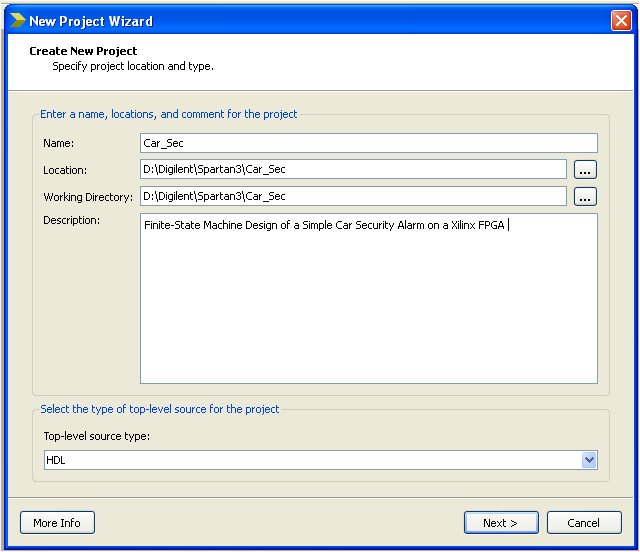
Give the project a name such as Car_Sec and fill all the fields appropriately, including pointing to the drive and directory in your PC where you will keep the project files:

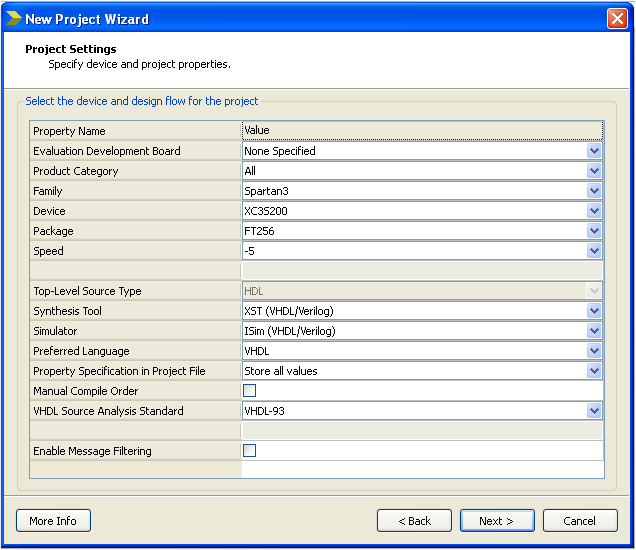
Click on Next button and the following window will open:

Do the required changes as shown on the image and click Next button. The following window will open:

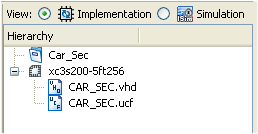
Click Finish button. The Project Navigator will show an empty view of the Hierachy window of our project:

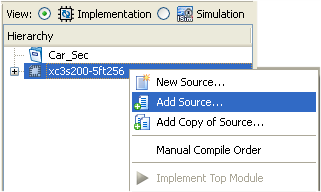
Now we add the VHDL source we have generated in part I:

The following window will open which will hopefully do a sucessful adding of source:

Press Ok button.

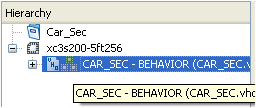
The Project Navigator will show a summary of what has been done so far and the source code will show up in Hierarchy window. Highlight the Car_Sec.vhd file and double click on it:

The full VHDL code will be shown in the right window of our Project Navigator:

We are now ready to check syntax, and do further preparations for implementation.

In the Processes window we run Check Syntax

The results hopefully will be Ok as shown:

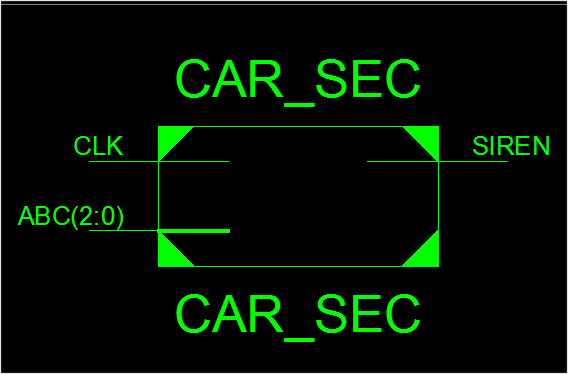
We will next see our schematic. We will first run Create Schematic Symbol in Processes window:

Now run View RTL Schematic in Processes window:

Viewer Startup Mode window will pop up, where we will choose the second choice as shown:

Click Ok. In the right window of Project Navigator we will see the main schematic:

If we click the block diagram, we will see:

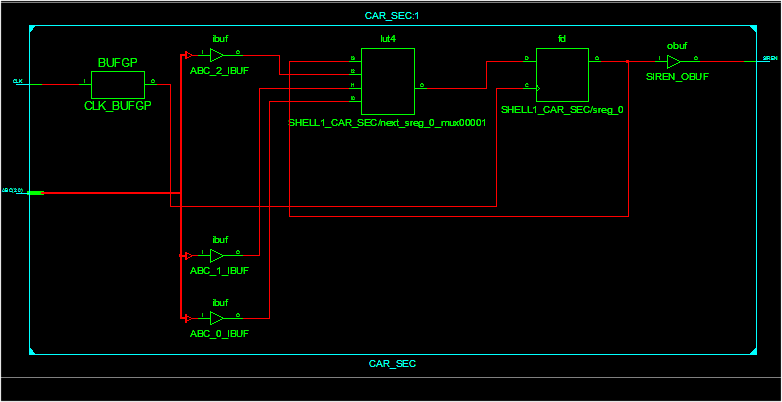
By clicking LUT4 block we will see the logic circuit:

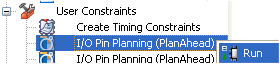
We are now ready to create contraints, i.e. configuration of inputs and outputs in our Digilent Spartan 3 Starter kit board. In Processes window run I/O Pin Planning (PlanAhead):

A window will pop up to tell us that no constraints file have been created:

We click Yes button. PlanAhead will open with Welcome to Plan Ahead window popping up:

After tcl file has run automatically, we have to close this window and concentrate on I/O Ports window of PlanAhead:

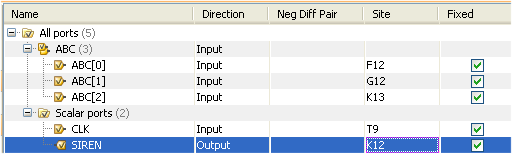
Clicking on ABC and Scalar ports we will expand these folders. And we start to introduce constraints referring to our Digilent Spartan 3 Starter kit board as shown.

We introduce the riht input and output pins. Please refer to Digilent Spartan 3 Starter kit manual.

We are now ready to save Constraints in File -> Save Constraints as shown:

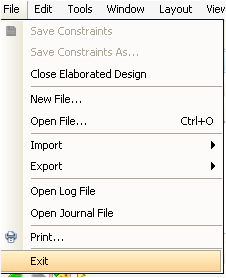
Leave PlanAhead with File ->  Exit

Press OK as in following window:

We are now back to Project Navigator where we will see our constraints file we have just created:

We wii proceed to Processes window and run Synthetize-XST as shown:

Hopefully results will be of sucessful synthesis:

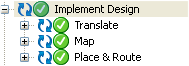
We next will run Implement Design:

And the results will be again hopefully of sucessful process:

Finally we are ready to generate the bit file with which we will program our Digilent Spartan 3 Starter kit board:

Programming file will be generated hopefully:

And the Console window will show the results of the process:

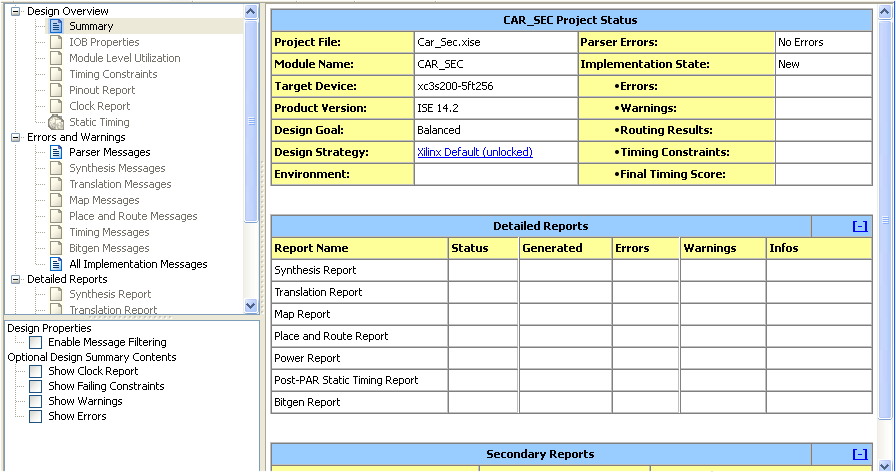
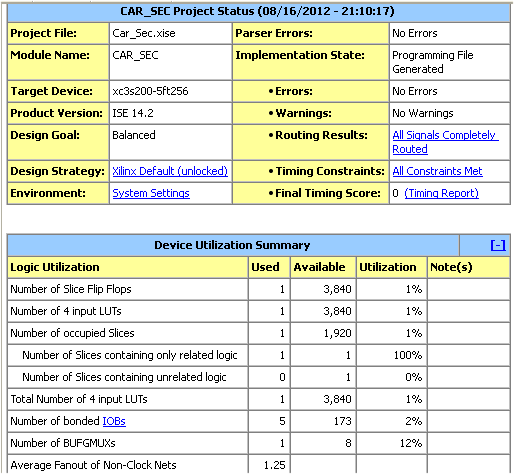
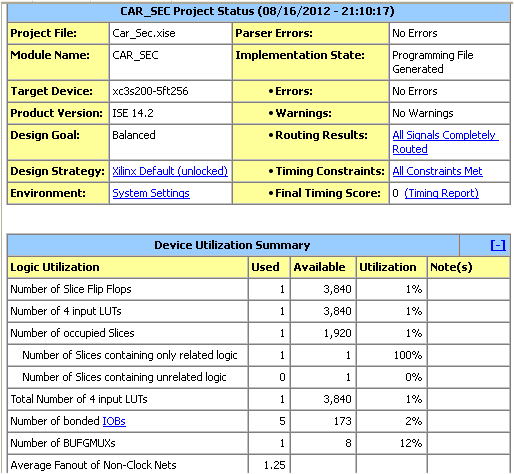
The right window of our Project Navigator will give us the summary of our project:

We are finally ready to implement after checking out the summary that everything is right.

We will now program in our Spartan 3 board. It is assumed that you have the Digilent board duly configured to “see” the USB Jtag programming cable, and Digilent Adept 2 chaintool is installed in your PC.

Within Processes window choose Generate Programminf file. Right click with your mouse and Run as shown

Programming file will be generated hopefully with success:

Finally we will program our Digilent Spartan 3 Starter kit board:

A pop up window will open:

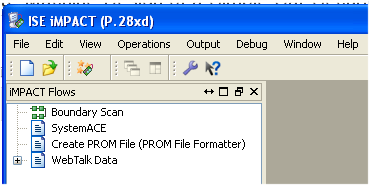
Click OK. Xilinx ISE Impact will open with empty workspace:

Double click on Boundary Scan. The empty workspace will now show:

Do as it says: Right click to initialize toolchain. Choose the option as shown below:

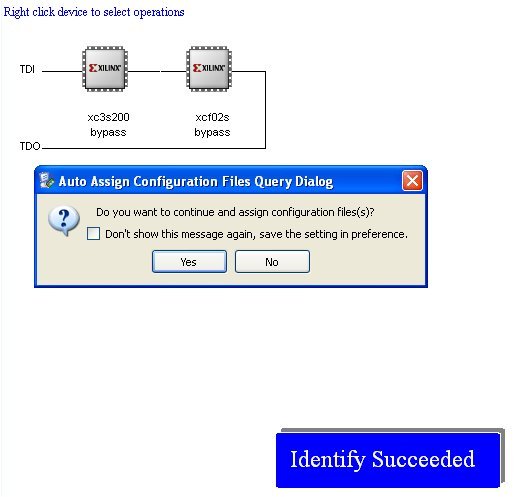
The result will be:

A sucessful identification has occured. Press Yes button.

NOTE: We will not program the PROM. This process requires configuration in Adept 2.0 by launching Create PROM file before doing anything else in ISE Project Navigator.

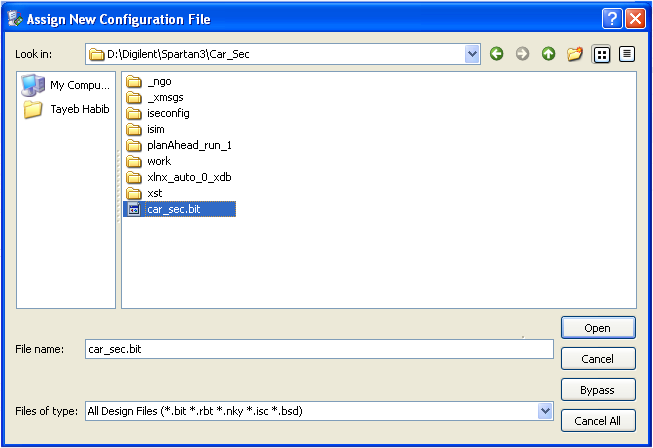
A window will pop up, and we will introduce the bit file we have generated in our Car_Sec project directory.

Assign the bit file and click Open

A new pop up window will invite us to assign PROM file:

Click Bypass. A new window will pop up:

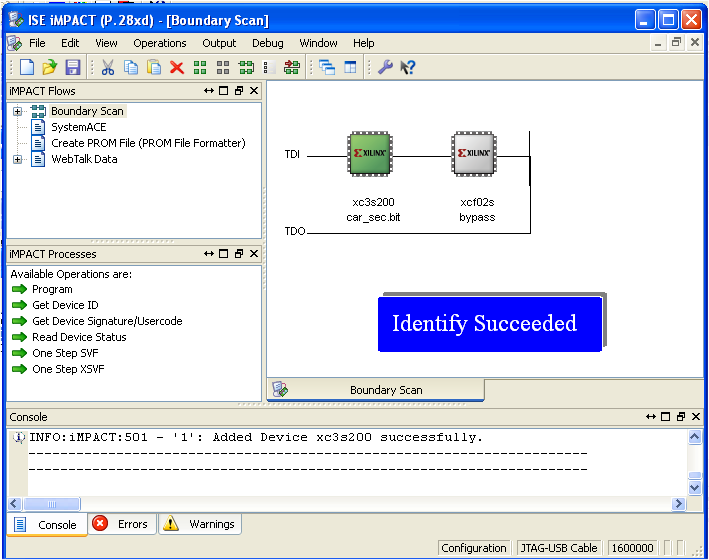
Press OK and the result will be:

We will now right click XC3S200 icon in order to program the board and choose Program:

Device will be programmed and hopefully will be hopefully successful as shown below

A succesful programming has been done.

Testing the project

The alarm security circuit will light up a LED (LD0) on Spartan 3 Starter kit board, simulating SIREN sounding, only when the conditions we have established of state machine occurs. Test the state machine as shown:

On Digilent Spartan 3 board, the leftmost switch represents ALARM armed or unarmed (upward or downward respectively) the rightmost switches are DOOR (upward door open, downward door closed) and ULTRASONIC SENSOR (upward presence detected and downward no presence).

DEMO Video:

Download

The board Constraints and bit file can be downloaded from here.

Conclusions:

A complete Workflow has been shown in this three parts tutorial of a simple Car Security Alarm using Finite-State Machine to design the logic circuit.

We first designed the State Diagram in StateCAD and generated VHDL, then we simulated our state diagram in StateCAD to verify whether it behaves as expected.

In this part of our tutorial, we imported the VHDL file of part I in Xilinx ISE Project Navigator, and we followed all the procedures to implement our VHDL in an FPGA.

We have sucessfully programmed the Digilent Spartan 3 Starter kit board, and tested our Car Security Alarm state machine we designed in part I.

Posted in Electronic Projects, Electronic Simulation | Tagged , , , , , , , , , | 10 Comments

Finite-State Machine Design of a Simple Car Security Alarm on a Xilinx FPGA – Part II

Objectives

In part I we have generated VHDL code from a State Diagram. We will now simulate the state diagram in order to debug it, and to ensure that it behaves as expected. In part III we will implement the VHDL code of part I in actual FPGA Spartan 3 Starter kit board.

Using Statebench

Before implementing our logic in our Spartan 3 Board we need to make sure that the State Diagram that we have designed will be behaving as expected by simulating it. With StateBench we can go through our design one clock cycle at a time, changing inputs and verifying outputs.

Our State Diagram of part I looks like this:

In order to be able to simulate it, we need to add a reset. In StateCAD activate Add reset:

Now add reset to the state diagram:

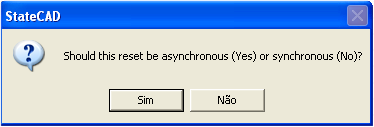
The following window will pop up:

Press No button to choose synchronous. We are now ready to simulate.

Click the StateBench button:

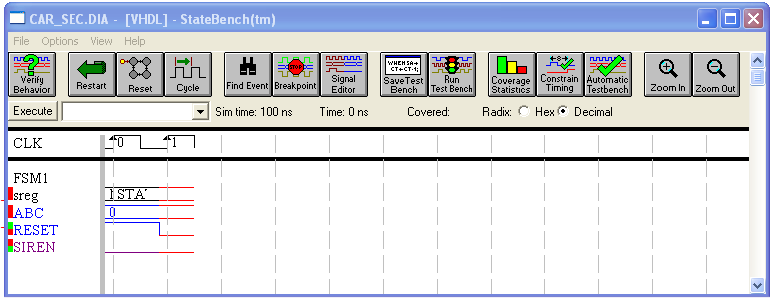
StateBench window will open:

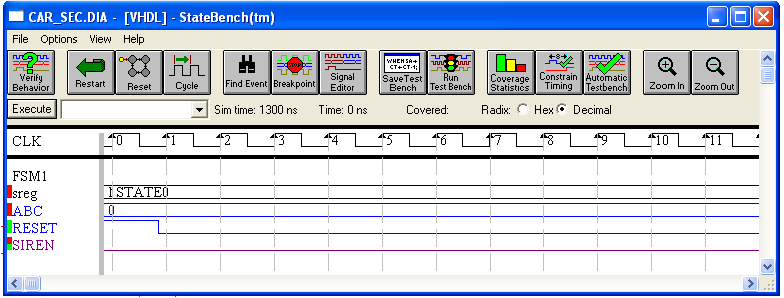
Click the Reset button. We will now see the initial state:

We then need to add more clock cycles, clicking onto:

The result will be as shown:

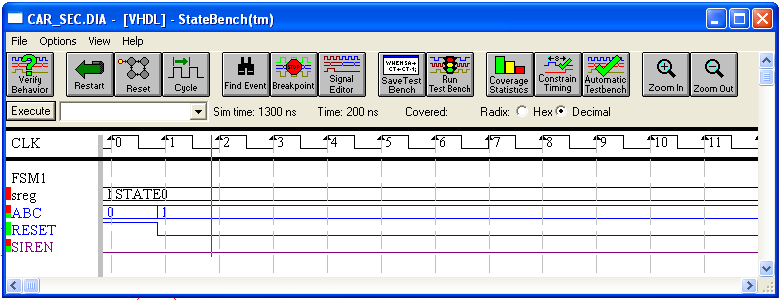
We will next change input by double clicking on a time line position of input and a cursor line will appear as shown with a pop up window to assign a value:

Change the value to decimal 1 (001). The resulting window will pop up:

We will choose No to change input value to 001 henceforth. And the result will be:

NOTE: By default the rightmost edge of the clock before the point chosen will be indicating the new value (decimal 1). SIREN is still off, and we remain in STATE0.

Change values the same way to 2 (010) , 3 (011) and 4 (100). The state will continue to be STATE0 and SIREN will not sound, i.e. it will be 0 (zero).

Nowzn if we add input value 5 (101) at a different time line as shown:

The following window will pop up:

Choose again No to change values henceforth.

Around less than 10 cycles later (about 1ms later) there will a transition to STATE1 and SIREN will be sounding. i.e. it will be 1. To view better the transition, add more clock cycles by  clicking onto:

And now you can view better what is happening:

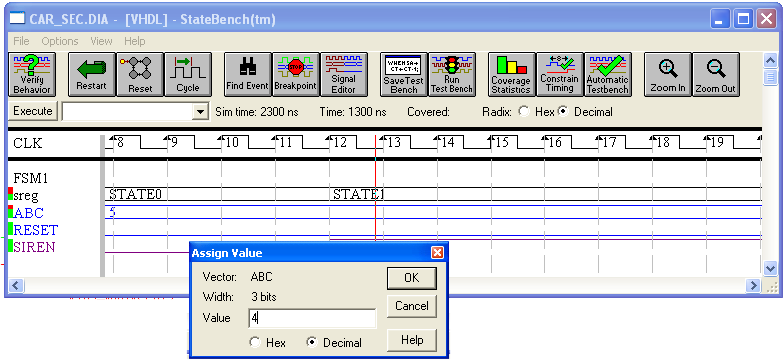
Change again by double clicking at time line edge of input to obtain the following result:

Introduce 4 (100) i.e. door is closed (B=0) and again the following window will pop up:

Choose No to maintain the input value henceforth. The result will be as shown i.e. that the state remains itself as STATE1 and SIREN is still sounding:

The graph means that if we rapidly shut the door (returning to 100 condition)  at 86ns (1300 minus 1214ns)  the SIREN will continue to sound, and the system will maintain itself at STATE1. Change the condition again to another value as shown:

Now at a different time line do the same procedure as before and change the condition of input to 1 (001)

To view bettera, add clock cycles by pressing the button:

Our better view will be something similar to shown below:

At about less than 10 cycles i.e. about 1ms, there will be transition to STATE0 and SIREN will not sound anymore. We have returned to the first state, i.e. STATE0. If we repeat the input conditions as we did before, we will prove that a transition occurs only to STATE1 when input is either 5 (101) or 6 (110)  or 7 (111).

Conclusions:

StateBench allows to simulate a state diagram by going through our design one clock cycle at a time, changing inputs and verifying output.

Our simulation has proven that the State Diagram we designed in part I is behaving as expected. We need now to implement and to test in our Digilent Spartan 3 board, the VHDL we generated in part I..

Posted in Electronic Projects, Electronic Simulation | Tagged , , , , , , , , , | 1 Comment

Finite-State Machine Design of a Simple Car Security Alarm on a Xilinx FPGA – Part I

Objectives

Finite-state machine (FSM) or finite-state automaton design of a simple car security alarm using StateCAD, and implementation  on a Digilent FPGA Spartan 3 Starter kit board..

In this part we will generate the VHDL code. In part II we will simulate and in part III we will implement the VHDL code in our Digilent Spartan 3 Starter kit board.

Requirements

– StateCAD inside Xilinx ISE Design Suite 10.1
– Digilent Spartan 3 Starter Kit board (for implmentation in part II)

Overview

StateCAD allows visual implementation of a State Diagram and translation into a Hardware Description Language (HDL) code. It is not necessary to understand the HDL code, however we have little control over how the software translates the state diagram.

We will create a state diagram for a car security alarm, and generate VHDL.  In part II we will simulate our state diagram to check whether it behaves like we expect. In part III we will create the schematic symbol and implement the VHDL code in our Diglent Spartan 3 board, and finally test the car security alarm to ensure that it works as expected.

Car Security Alarm Specifications

We wil devise a simple Car Security Alarm that will sound a siren if the car alarm system has been energized i.e. armed (A=1) and the door is open (B=1) and / or an ultrasoic sensor signals movement inside the car (C=1).

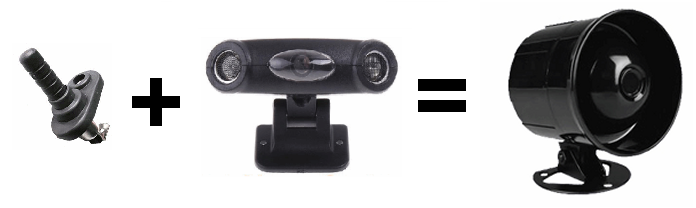
Image showing door switch , ultrasonic sensor and siren

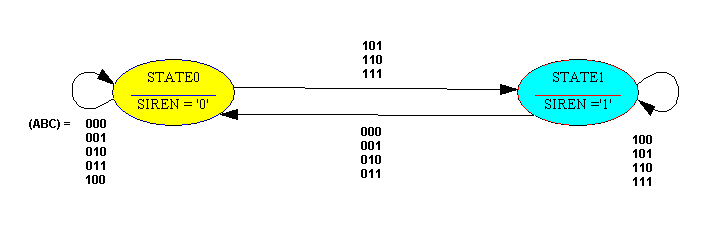
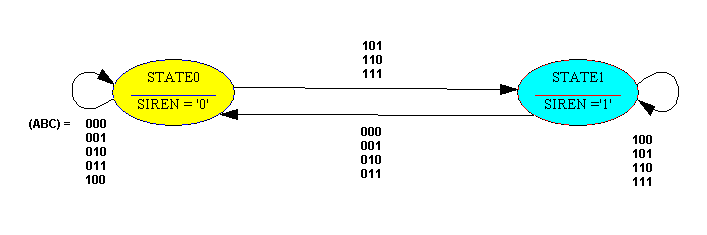
We need to ensure that when the door has been opened in an unauthorized manner, or a presence is detected by the ultrasonic sensor within the car, the alarm siren will sound. This is achieved with a Finite-State Machine (FSM) as shown:

State transition diagram of car security alarm

1) In STATE0 the siren is off (SIREN=0) if the alarm is not energized that is armed (A=0) and the door (B) or the ultrasonic sensor (C) can be in any combination, or if alarm is armed (A=1) the siren will not sound if door is closed (B=0) or no presence is detected within the car by the utlrasonic sensor (C=0).

2) There is a transition from STATE0 to STATE1. if alarm is armed (A=1) and if either the door is open (B=1) or ultrasonic sensor detects a presence within the car (C=1) or both the door is open and ultrasonic sesnor detects (B=1 and C=1), the siren  will sound, and the system will remain in STATE1.

3) The system will remain in STATE1 that is. siren will be sounding whatever happens next to the door (either is closed or open or sensor detects or not, provided the alarm is still armed (A=1).

4) Transition from STATE1 to STATE0 occurs only if the system is desarmed (A=0). and in this circunstance for B or C, the siren will not sound anymore (SIREN=0).

Creating the Diagram in StateCAD

Our aim is to obtain a State Diagram as shown above.

Open StateCAD by navigating thorugh the Start menu:  Start -> Programs -> Xlinix ISE Design Suite 10.1 -> ISE -> Accessories -> StateCAD.

Activate the state diagram tool by clicking the Add State icon found  in the tool bar:

A state similar to the one shown below appears:

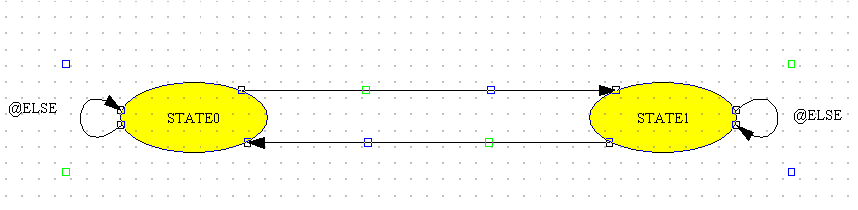
You will draw next State as shown in our proposal for the State Diagram. We will next connect up the two states with transitions by using the tool Add Transition, activating the following icon in the tool bar:

 And now draw by clicking and linking to obtain the following result:

Both states and transitions

Save the drawing with the name STATE_CAR. Now click onto the STATE0 and Edit State window will pop up:

Output condition  SIREN=”0″ added

Do as shown introducing output SIREN=”0″. After finishing click OK, and do the same with STATE1 and add output condtion as SIREN =”1″

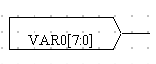
Add variable vector to the drawing by activating Add Vector icon (looking like a yellow bus) in the tool bar:

And place variable vector:

Click onto it  and the Edit Vector window will pop up:

Change the name to ABC and the range to 2:0, as shown in the figure and click OK.

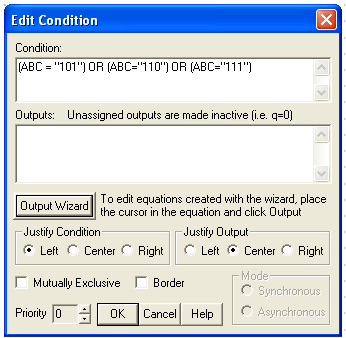
We will next change the conditions of the transitions. Click onto the loop back transition of STATE0 and Edit Condition window will pop up:

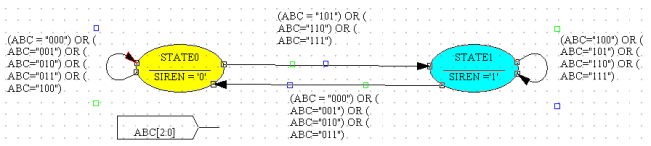
Introduce Condition: ABC = “000”) OR (ABC=”001″) OR (ABC=”010″) OR (ABC=”011″) OR (ABC=”100″) . And press OK

Edit all other transitions to obtain the following final result:

We are now ready to ckeck variables. Right click with the mouse onto an empty area of the drawing and the follwing menu will pop up where you will choose Variable… .:

Menu to check the variables

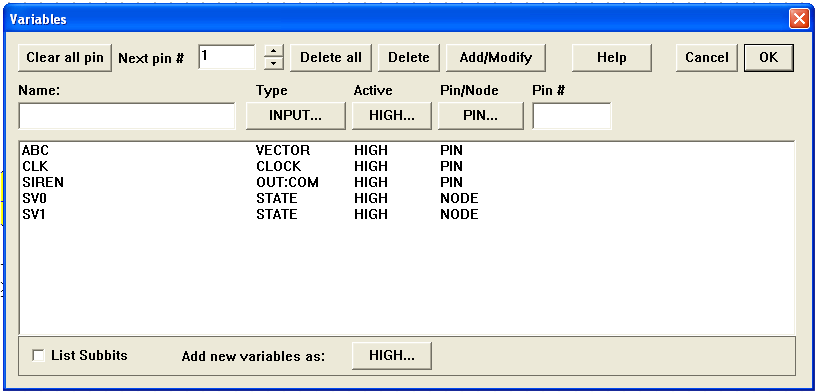
The window with Variables will pop up:

Variables window

If you have done everything right the window will show all the variables in your drawing. Click OK.

NOTE: You can make modifications here if it is required.

We are now ready to compile.  Click Generate VHDL icon on top tool bar just below top menu:

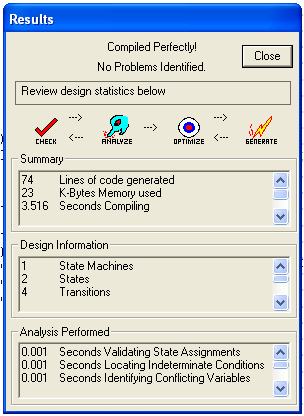
If everything is OK, following window will pop up:

NOTE: Warning windows may pop up before Results, to tell you for example that compilation has found remnants of variables you may have added and invitate you to delete them, that you must do.

A window will pop up if you Close the window, showing the VHDL code that has been generated:

Generated code window

NOTE. You can check now if the code makes sense, but can do nothing else apart going back to  the drawn project and edit it.

We are just about ready to simulate the state diagram and implement the VDL code in our Xilinx FPGA, something that we will do in parts II and III of this tutorial.

Download

The drawing and generated VHDL files can be downloaded from here.

Acknowledgements

A special credit is due to Examples from Class pdf found at University of Wrocester site, for the state diagram. This tutorial uses a  completely different approach to achieve the code generation.

Conclusions

We have designed  a State Diagram in StateCAD and compiled a VHDL file. In part II we will simulate the state diagram and in part III we will program our Digilent Spartan 3 board, and test physically the logic circuit.

Posted in Electronic Projects, Electronic Simulation | Tagged , , , , , , , , , | 2 Comments

Designing, Simulating and Implementing a Simple Car Alarm on a Xilinx FPGA – Part II

Objectives

Implement a simple car alarm on a Xilinx Spartan 3 Starter kit board from Digilent, using the VHDL code exported from Multisim 12.0 in our first part of this tutorial,

In this second part we will implement and test the logic circuit of the Car Alam on a Xilinx FPGA Spartan 3 Starter kit board.

Workflow

A complete workflow of an FPGA design is normally:

  • Problem/requirements analysis, vendor selection
  • Behavioral model design
  • RTL (Verilog or VHDL) design
  • RTL verification
  • Logic synthesis
  • Implementation
  • Static timing analysis
  • Bitstream generation

The first two steps have already been taken in part I. In this part the next steps will be taken (except for Static timing analysis, obviously).

Requirements


– VHDL code from part I
– Digilent Spartan 3 Starter Kit board
Xilinx ISE Design Suite 13.4 or superior

Implentation on FPGA

Launch Xilinx ISE  Design Suite, get into the Project Navigator, and start a New Project pressing the button for New Project. Xilinx ISE Project Navigator controls all aspects of the development flow of our FPGA. We will use it to launch all development tasks.

Give the project a name such as Car_alarm and fill all the fields appropriately, including pointing to the drive and directory in your PC where you will keep the project files:

New project in Xilinx ISE

Press Next > button, and choose the fields again as shown:

Second window of new project

Press again Next > and you will see the final window:

Window shows a summary of our choices

Press Finish and we will get back to the Xilinx ISE Project Navigator.

We will concentrate for now on Implementation and Hierarchy window:

Hierarchy in Project Navigator

We will add Car_alarm.vhd source (from part I of this post) , by pressing with the right button of the mouse on XC3S200-5FT256 and Add Source:

Step to add VHDL source

Car_alarm.vhd will now be part of our project Hierachy window:

Car_Alarm behavioral as part of Hierachy

If ones presses onto the Car_Alarm behavioral in Hierarchy window, the desktop window will show the code.

We will check the syntax in the Processes window just below the Hierachy window on the left side of workspace, by pressing with the right button of the mouse on Check Syntax:

Run syntax verfication

Hopefull the syntax will be right and the Processes window will be now as shown below:

Car_alarm.vhdl syntax is ok

And the Console windows will report success:

Console with report of syntax check

We will now add Constraints file  in order to Synthetize next and implement the VHDL code. The Constraints file (UCF) will tell the Xilinx ISE the pins arrangements  (I/O planning) of our  Spartan 3 board.

The Contraints file can also have timing, offset, false and or multicycle paths, and other relevant constraints. In our case, with simple logic circuit, only I/O pin arrangements are required.

Our Xilinx ISE Project Navigator gives us an interface PlanAhead tool that permits the constraints file to be written. In Processess window press with the right button of the mouse I/O Planning (PlanAhead) and Run:

Run PlanAhead for I/O configuration

The following window will pop up:

Window informing inexistence of Constraints file

Press Yes button and PlanAhead will open. Once the start up has been made with our VHDL file, the following Welcome window will open:

Welcome window

The window show the link of PlanAhead User Guide pdf which is worth reading. Press Close button.

In PlanAhead within I/O Ports window expand the Scalar ports where you will see the 4 ports we defined in part I.

I/O Ports window

We will check  the Digilent Spartan 3 User Manual to configure Contraints of the pins. In page 19 we see the slider switch connections:

Slider switch connections in Spartan 3 board

In page 20 we see the LED connections:

LED connections in Spartan 3 board

DOOR will be SW2 i.e. H14;
KEY will be SW1 i.e. G12;
SEAT will be F12;
and ALARM will be LD0 i.e. K12.

Hence within Site of I/O ports we will introduce these values:

Values introduced in I/P Ports

We will not savw the project in File > Save Project

Save the project

We will next Exit and return to the ISE Project Navigator in order to now Synthetize.

In Processes window  Run Synthetize – XST and the process result will be:

Running Synthetize

Hopefully if everything is right it will be successful as show:

Sucessful Synthetizing

We will now run Implement Design in Processes window and the result will be similar as shown:

Results of Implement Design

Next we will generate programming bit file, which will be used to program our Spartan 3 board. Run

Running Generate Programming File

If all goes well the result on the right side will show success:

Sucessful Generate Programming File

The Console window will show:

Report in Console window

We will now program our Spartan S3 board. It is assumed that you have the Digilentboard duly configured to “see” the USB Jtag programming cable, and Digilent Adept 2 chaintool is installed in your PC.

Within Processes window choose Configure Run Manage. Right click with your mouse and Run as shown

Run Manage Configuration Project

Digilent Adept 2 will open. Click on Boundary Scan:

The empty workspace will show:

Message in ISE Impact’s workspace window

Do as it says: Right clich to initialize chain. Choose the option as shown below:

The result will be:

Succesful device identification

Press Yes button

NOTE: We will not program the PROM. This process requires configuration in Adept 2.0 by launching Create PROM file before doing anything else in ISE Project Navigator.

A window will pop up, and we will introuce the bit file we have generated in our Car_alarm project directory.

Assigning the bit file

A new pop up window will invite us to assign PROM file:

Window to Assign PROM file

We will press bthe button Bypass. A new window will pop up:

Final Assign window

Press OK and the result will be:

Assign result: Identify Sucessful

We will now right click XC3S200 icon in order to program the board:

Program the FPGA

Device will be programming and hopefully will be hopefully successful as shown below

Succesful programming

Testing the project

The alarm circuit will light up a LED (LD0) on Spartan 3 Starter kit board only when the key (SW1) is in the ignition and either the door (SW2) is open or the seatbelt (SW0) is not fastened. The variables are:

                                    Key = 0      key is not in the ignition
                                    Key = 1      key is in the ignition
                                    Door = 0    door is open
                                    Door = 1    door is closed
                                    Seat = 0     seat belt is not fastened
                                    Seat = 1     seat belt is fastened
                                    Alarm = 0   alarm is not ON
                                    Alarm = 1   alarm is ON

Hence the Truth table is:

Where A (SW2) = DOOR, B (SW1) = KEY and C (SW0) = BELT.

On Spartan S3 board, from rightmost switch in direction to left, we have BELT, KEY and DOOR.

DEMO Video:

Download

The VHDL, Constraints and bit file can downloaded from here.

Conclusions:

A complete Workflow has been shown in this two parts tutorial of a simple Car Alarm.

From Truth table we have obtained the Boolean expression, and we have simulated in Multisim 12.0 and exported the respective VHDL code.

In this part of tutorial we imported the file in Xilinx ISE Project Navigator, and we did all the procedures to implement the VHDL on an FPGA.

We have sucessfully programmed the Digilent Spartan 3 Starter kit board, and tested our Car Alarm circuit we designed in part I.

Posted in Electronic Projects, Programming | Tagged , , , , , , | 3 Comments